

Send InfraNest alerts straight into a Microsoft Teams channel, so incidents and expiries reach the whole team without anyone having to check InfraNest directly.
Overview
- Alerts like Monitor down, SSL expiry critical, and Domain expiry warning can be posted to a Microsoft Teams channel automatically.
- You'll need an incoming webhook URL from Teams first, then you'll add it as a channel in InfraNest.
- Once connected, you choose which alerts get sent to Microsoft Teams from your Alert Channels settings.
Before you start: get a webhook URL from Teams
- In Microsoft Teams, open the channel you want alerts posted to.
- Add an Incoming Webhook connector to that channel.
- Give it a name (for example, "InfraNest") and create it.
- Copy the webhook URL that's generated — you'll need it in the next step.
Connect Microsoft Teams in InfraNest
- Go to Alert Channels.
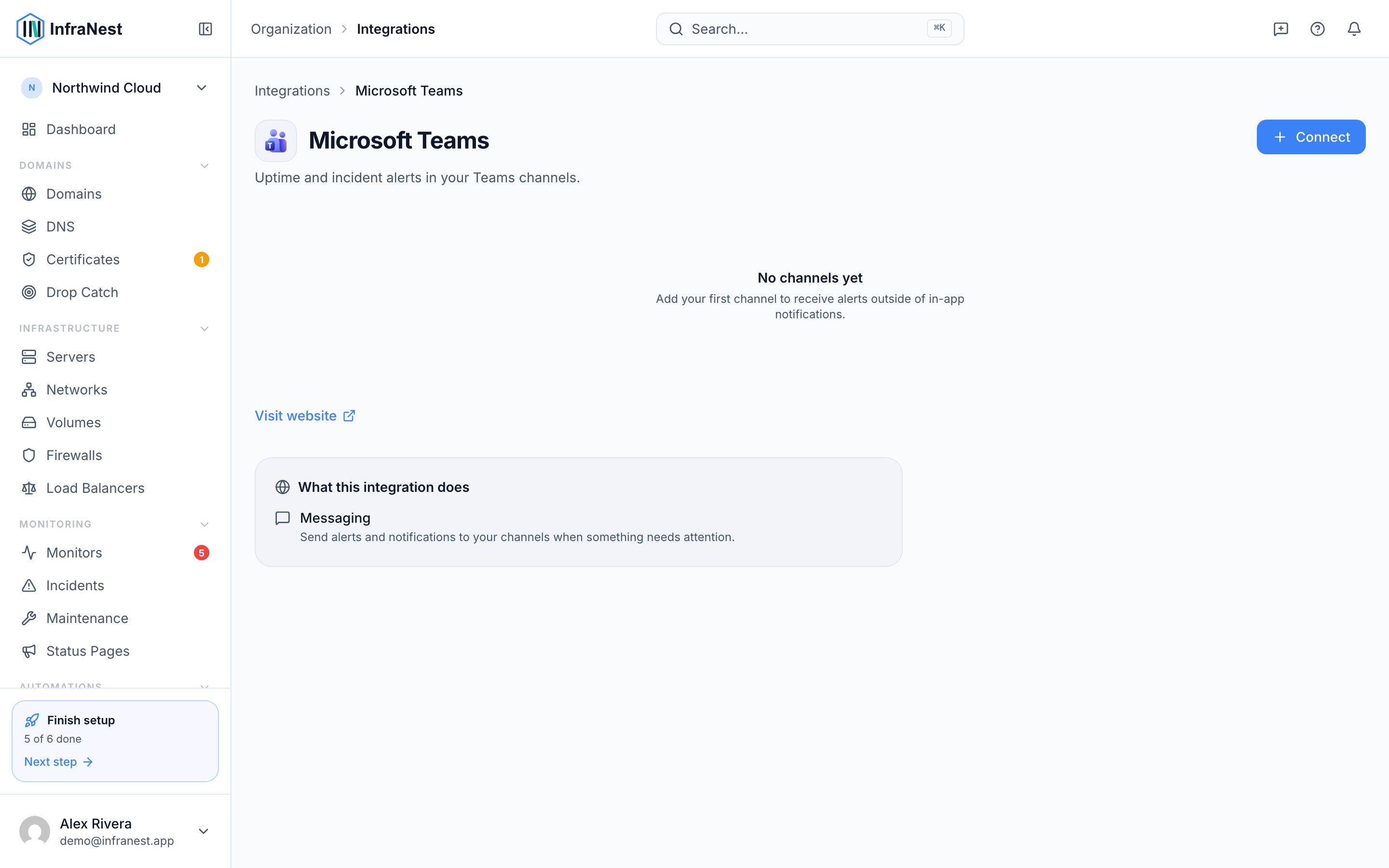
- Select Add channel (or Add your first channel if this is your first one).
- Choose Microsoft Teams.
- Paste your webhook URL into the Slack webhook URL-style field for Teams.
- Select Send test to confirm the message arrives in your Teams channel.
- If the test succeeds, select Save & test to finish. If you'd rather skip the check, choose Skip test and save.
Choose which alerts go to Teams
Once your Microsoft Teams channel is saved, decide what it should hear:
- Open Alert Channels and find your Microsoft Teams channel.
- Select Edit channel.
- Under Event subscriptions, pick All events or Critical only, or choose individual alerts like Monitor down, Domain expiry critical, or Maintenance starting.
- Select Save changes.
NoteThe webhook URL is stored securely and isn't shown again after you save it. If you need to change it later, you'll have to paste it in again.
TipEach destination posts to a single Teams channel. If you want alerts split across multiple channels, add a separate channel for each one.
Troubleshooting
- Test failed — double-check you copied the full webhook URL from Teams, and that the connector is still active on that channel.
- No messages arriving — confirm the channel has at least one alert selected under Event subscriptions; a channel with no subscriptions won't receive anything.
Was this article helpful?