

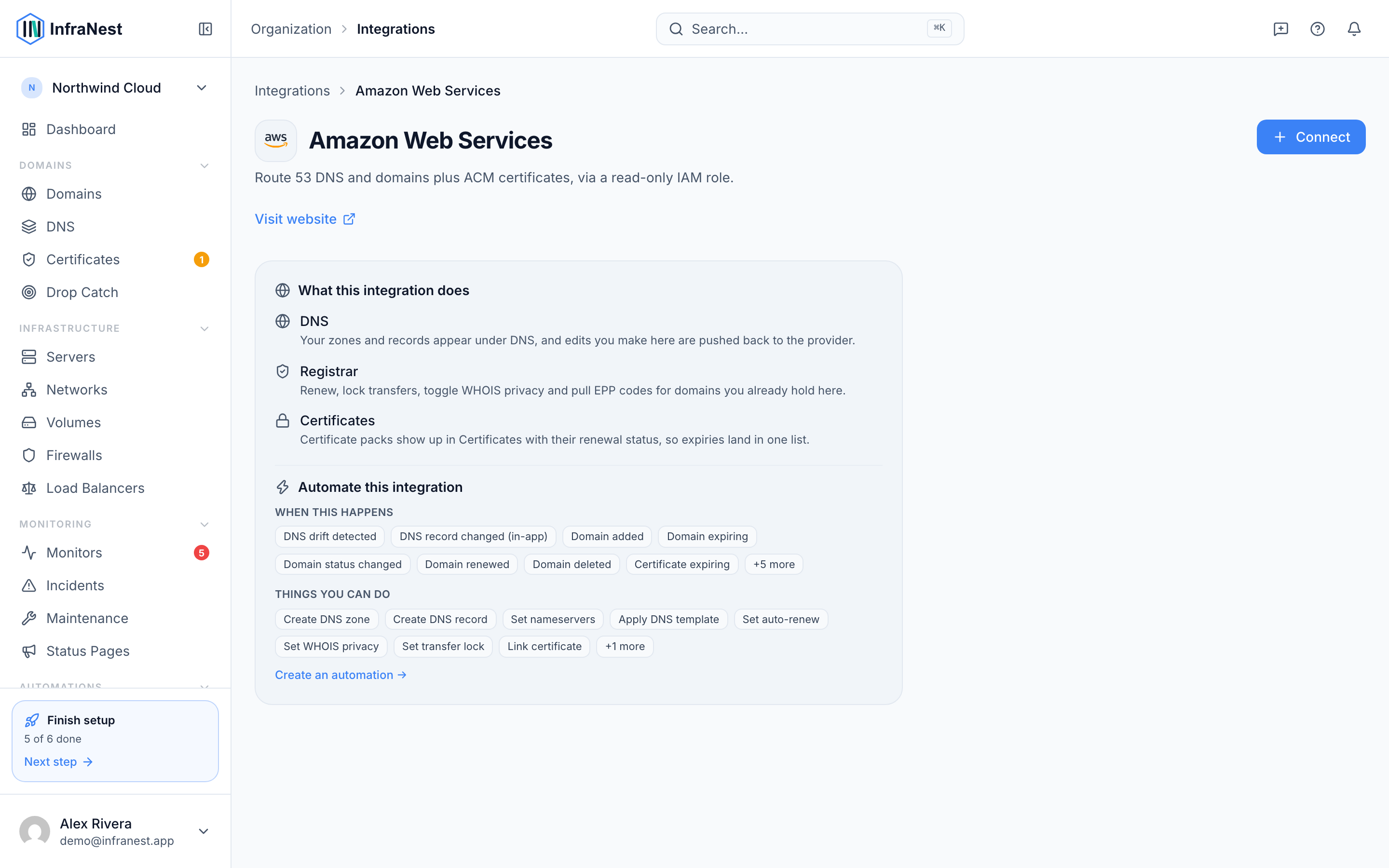
Connect your AWS account to InfraNest to manage Route 53 DNS, Route 53 domains, and ACM certificates all in one place.
Overview
- Manage your Route 53 hosted zones and DNS records directly from InfraNest.
- Register, transfer, renew, and manage your Route 53 domains.
- View your ACM certificates alongside your other certificates.
- Cloud servers (EC2) aren't supported yet — this connection covers DNS, domains, and certificates only.
Before you start
InfraNest needs access to your AWS account, using either an IAM role (recommended) or access keys.
- Set up access on the AWS side first — see Set up AWS access for the steps.
- Keep your role ARN, or your Access key ID and Secret access key, handy — you'll need one of these in the next section.
Connect AWS
- Go to Integrations and open AWS.
- Give the connection an Account label (this is Optional).
- Choose which features to use it for: DNS (Route 53), Domains (Route 53) and Certificates (ACM).
- Enter your role ARN, or your Access key ID and Secret access key.
- Pick the regions you use — certificates in ACM live in a specific region, while Route 53 is global.
- Select Connect.
NoteIf you're using a role, make sure the External ID matches what you set up on the AWS side — a mismatch is a common cause of access errors.
What you get once it's connected
- DNS (Route 53) — view and edit your hosted zones and records, and create or delete zones.
- Domains (Route 53) — register, transfer in, renew, and manage nameservers, contacts, DNSSEC, locks, WHOIS privacy and auto-renew.
- SSL certificates (ACM) — your ACM certificates appear in your certificate list.
Tips
TipSome country-specific domain endings need extra details to manage. InfraNest supports a curated set of these, and will show a clear message for any that aren't supported yet.
Troubleshooting
- "Access denied" errors — the role or user needs read access to Route 53, Route 53 Domains and ACM. Check the permissions, and if you're using a role, make sure the External ID matches.
- A certificate is missing — make sure the region it lives in is selected in the connection.
Was this article helpful?