

Connect Google Calendar to InfraNest so your domain renewals, certificate expiries and maintenance windows show up automatically in a dedicated calendar — this is for anyone who wants their infrastructure dates visible without checking InfraNest manually.
Overview
- Creates a separate InfraNest calendar in your Google account that updates itself.
- Covers domain renewals, certificate expiries and maintenance windows.
- Your own Google Calendar events are never touched.
NoteOne-click connecting has to be switched on for your workspace by an administrator. If it isn't available, you'll see a note about this on the Calendar page — use Subscribe with a calendar feed (iCal) instead, which needs no setup.
Connect Google Calendar
- Go to Integrations → Calendar.
- Under Connect your calendar, select Connect Google Calendar.
- Sign in to Google and allow InfraNest to manage the calendar it creates.
- You're returned to InfraNest, and the first sync starts straight away.
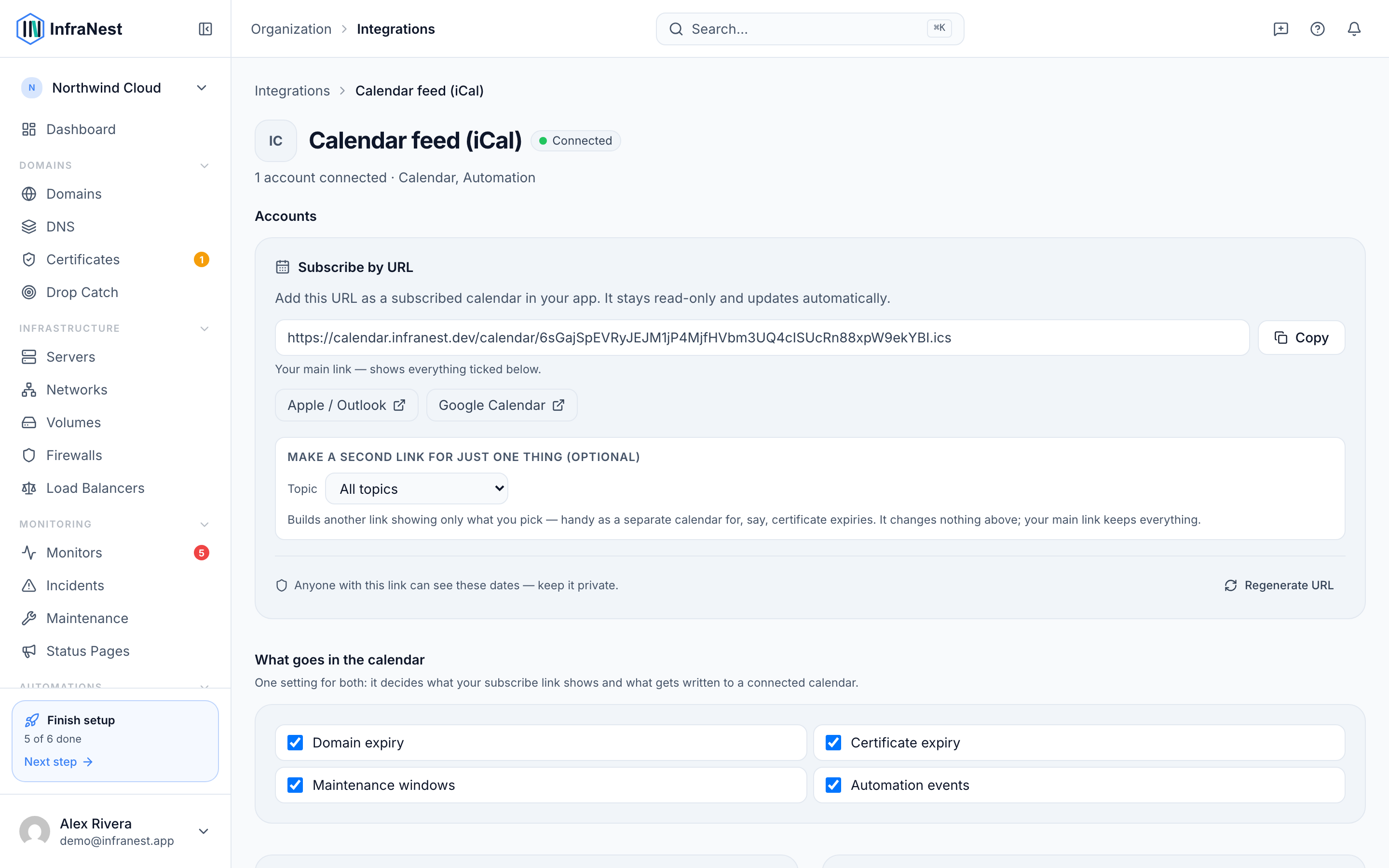
InfraNest creates a separate InfraNest calendar in your Google account, so your own events are never touched and you can hide ours with one tick.
Check it's working
- Go to Integrations → Calendar.
- Look at Last synced to see how long ago the sync ran.
- If it shows Not synced yet, the first sync hasn't finished — give it a few minutes and check again.
Troubleshooting
- "Reconnect needed" — Google revoked our access (a password change or a revoked app can cause this). Select Connect Google Calendar again to restore it.
- Events aren't appearing — check that the InfraNest calendar is ticked in Google Calendar's sidebar.
- Dates look wrong — events use the date the item expires; check the item itself in InfraNest to confirm.
TipIf you'd rather not connect an account at all, Subscribe with a calendar feed (iCal) gives you the same dates with no sign-in required.
Was this article helpful?