

Page your on-call team through PagerDuty whenever a monitor goes down — this guide is for anyone setting up InfraNest to alert their team automatically.
Overview
- InfraNest pages PagerDuty when a monitor goes down, using a PagerDuty Integration Key (also called a routing key).
- When the monitor recovers, InfraNest resolves the matching PagerDuty incident automatically.
- Acknowledging or resolving in either tool can update the other, once you finish an optional setup step.
Get your Integration Key from PagerDuty
- In PagerDuty, go to Services and open the service you want to be paged for (or create a new one).
- Open the service's Integrations tab and choose Add integration.
- Search for Events API v2 and add it.
- Copy the Integration Key it shows — a 32-character key. This is the value InfraNest needs.
WarningDon't use the API Access Key from PagerDuty's Integrations → API Access Keys page (keys like
PSOJL90…). That's for PagerDuty's REST API and InfraNest will reject it. Always use the Events API v2 Integration Key from a service's Integrations tab.
Connect PagerDuty in InfraNest
- Go to Alerts → Destinations.
- Select Connect a new destination and choose PagerDuty.
- Paste the Integration key (routing key).
- Select Send test to fire a test page and confirm an incident appears in PagerDuty. You can resolve it afterwards.
- Select Save.
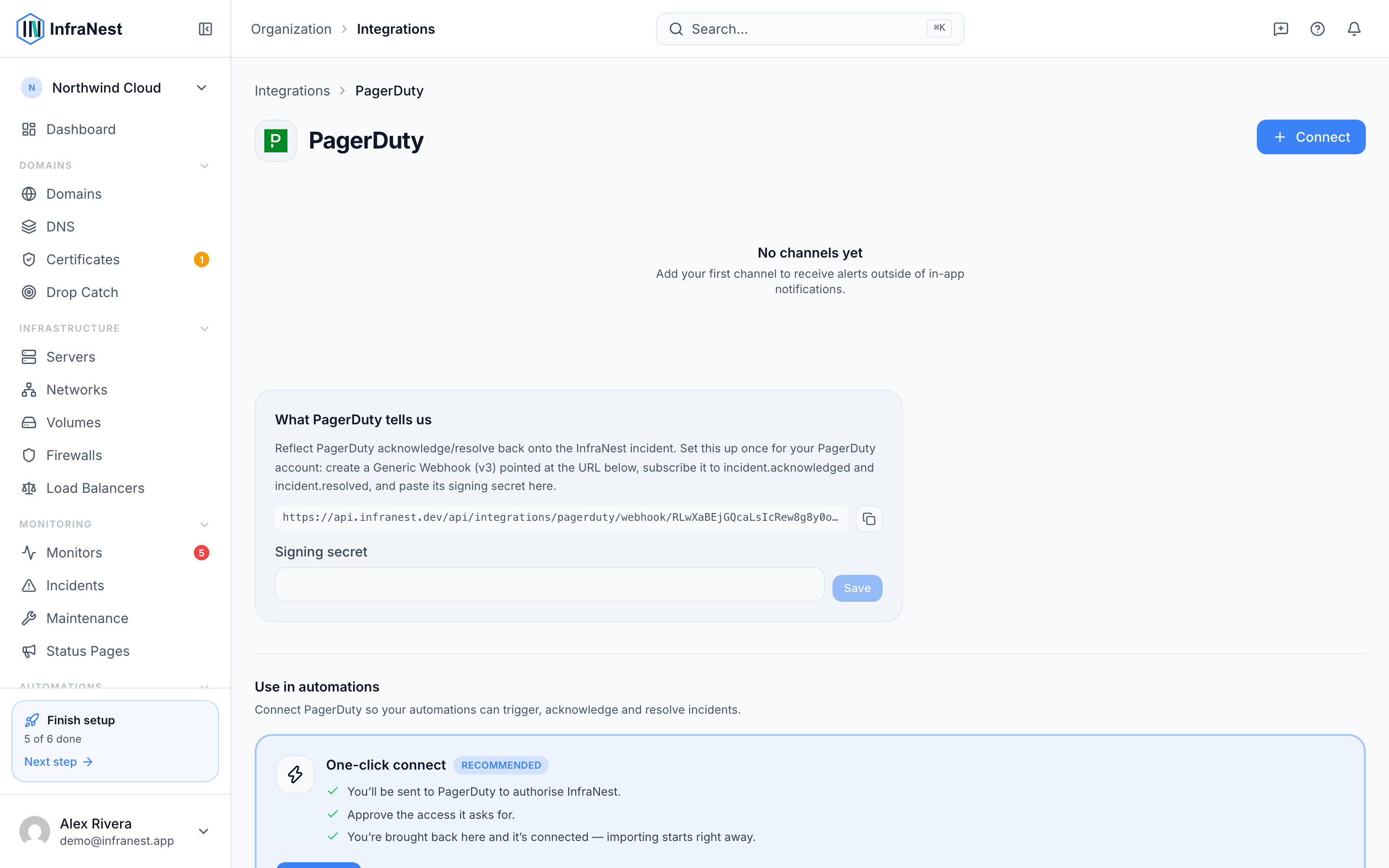
Send alerts to PagerDuty
- Once the destination is saved, choose PagerDuty when you decide which alerts go where, under Notify me when….
- A monitor going down triggers a PagerDuty incident marked critical.
- When the monitor recovers, InfraNest resolves that same PagerDuty incident automatically.
Acknowledge and resolve — both ways
- Acknowledge or resolve in InfraNest → the linked PagerDuty incident is acknowledged or resolved too.
- Acknowledge or resolve in PagerDuty → the InfraNest incident updates to match.
The second direction (PagerDuty → InfraNest) needs an optional one-time setup on your PagerDuty destination — see Two-way sync (optional). Paging and outbound updates work immediately with just the Integration Key.
Tips
- One destination pages one PagerDuty service. Add another destination if you need to page a different service or team.
- Automations can page PagerDuty for things a monitor never sees — like an expiring certificate or a failed job.
NoteThe Integration Key is stored securely and hidden after saving. You don't need a PagerDuty REST API key or OAuth for paging or two-way sync — only the Integration Key.
Troubleshooting
Test fails with "invalid routing key". You likely pasted a REST API Access Key instead of an Events API v2 Integration Key. Delete it, follow the steps above to get the correct key from your service's Integrations tab, and paste that instead.
Nothing pages. Check the destination is Enabled and that the monitor's alerts are routed to it. Select Send test again to confirm the key works.
A real alert didn't create a new PagerDuty incident. PagerDuty groups repeated alerts for the same issue into one open incident until it's resolved, so a flapping monitor updates the existing incident instead of paging again. This is expected — resolve the incident, or wait for recovery, and the next occurrence will page fresh.
Was this article helpful?