

Connect your Slack workspace to InfraNest so alerts about incidents, expiries and status changes show up right where your team is already talking.
Overview
- Posts InfraNest alerts directly into a Slack channel of your choice
- Keeps everyone in the loop without checking a separate dashboard
- Uses a Slack incoming webhook, so no complicated setup is needed
- You can connect multiple Slack channels as separate destinations if different teams need different alerts
Get a webhook URL from Slack
- In Slack, add an Incoming Webhooks app to your workspace (or open the existing one if you already have it).
- Choose the channel you want alerts posted to — this could be your Slack channel for on-call updates, for example.
- Copy the Slack webhook URL. Treat this like a password — anyone with it can post messages to that channel.
Connect Slack in InfraNest
- Go to Alerts, then open Destinations.
- Select Connect a new destination (or Add channel if you're adding another one).
- Choose Slack from the list, or select Post alerts to a Slack channel.
- Paste your Slack webhook URL into the Slack webhook URL field.
- Give it a name in Channel name so you can recognize it later.
- Select Send test message (or Save & test) to confirm the message lands in the right Slack channel.
- If the test succeeds, select Save to finish. If you'd rather skip the check, choose Skip test and save.
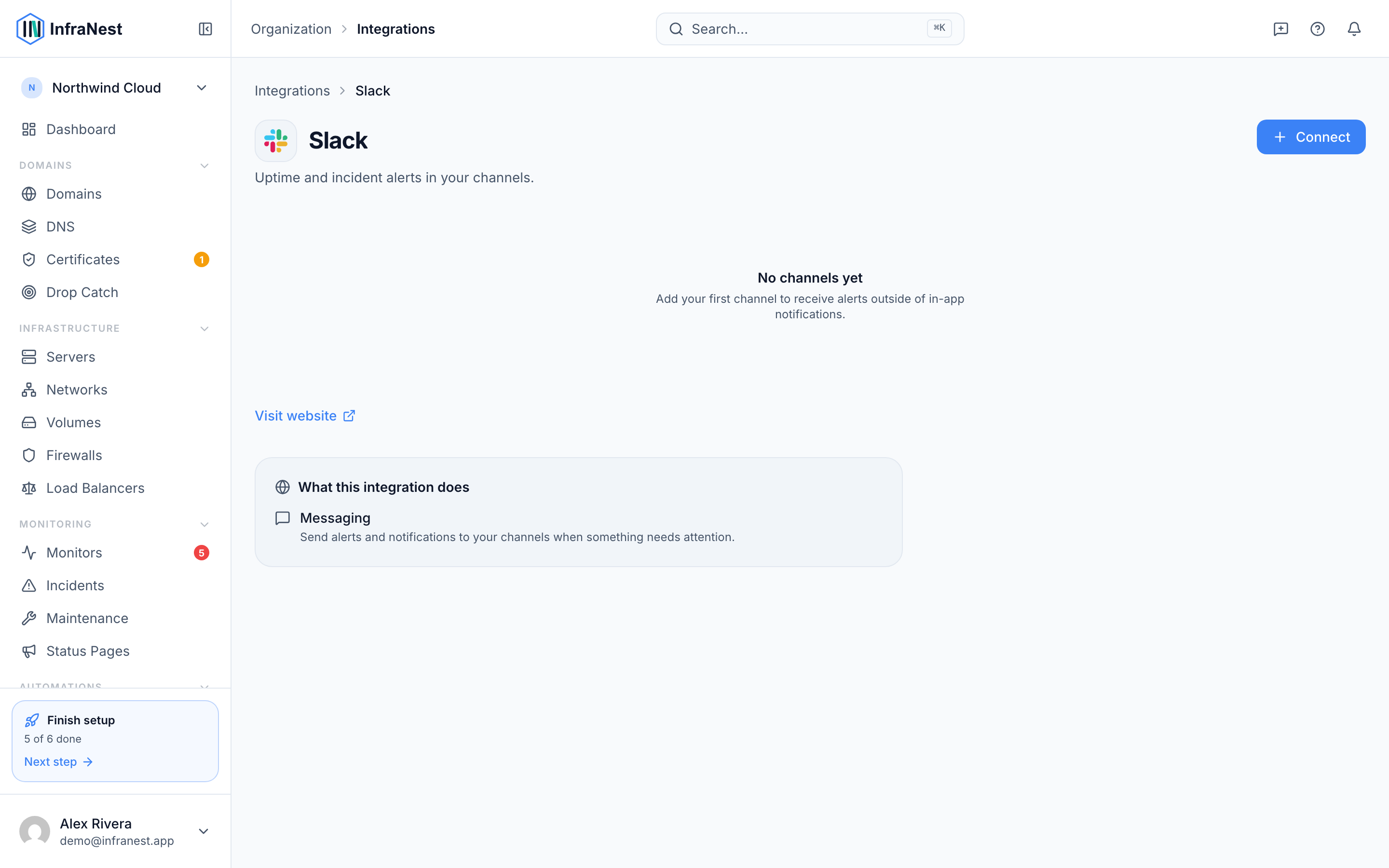
Send alerts to Slack
- Once your Slack destination is saved, go to the alert or event type you want to route — for example Monitor down, Domain expiry warning, or SSL expiry critical.
- Under Notify me when…, choose your Slack destination as the place to send that alert.
- Decide whether it should receive All events or Critical only.
- Save your changes.
NoteThe webhook URL is stored securely and isn't shown again after you save it. If you need to change it, open Edit channel and paste in a new one.
TipEach Slack destination posts to a single channel. If different teams need different alerts, connect a separate destination for each channel.
Troubleshooting
- Test failed — double-check you copied the full Slack webhook URL and that the Slack app still has access to the channel.
- No messages arriving — confirm the destination shows Webhook configured and that it's selected under Notify me when… for the alerts you expect.
- Wrong channel — the webhook URL is tied to one specific Slack channel; you'll need a new webhook URL from Slack if you want alerts somewhere else.
Was this article helpful?