

Keep track of renewals, certificate expiries and maintenance windows by subscribing to a private calendar feed — handy if you'd rather see everything in Google Calendar, Outlook or Apple Calendar than log in to check.
Overview
- Subscribing gives you a live feed of your renewals, certificate expiries and maintenance windows inside your own calendar app.
- It updates itself automatically — there's nothing to re-import or re-download.
- Works with Google Calendar, Outlook and Apple Calendar (and most other calendar apps that support subscribing by link).
Get your feed link
- Go to Integrations → Calendar.
- Open the Calendar feed (iCal) section.
- Copy the feed URL.
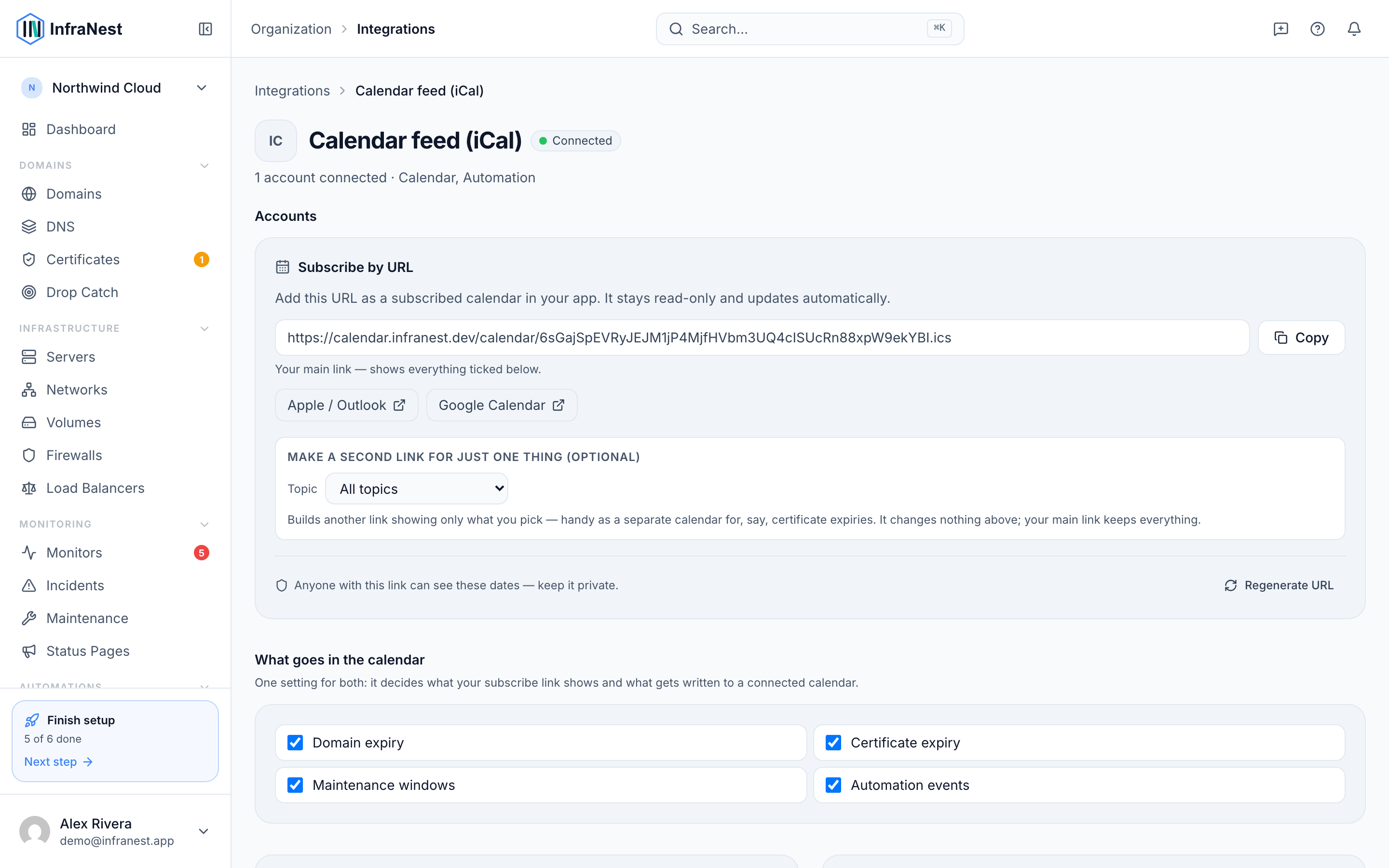
Add it to your calendar app
- Google Calendar — go to Other calendars, select +, choose From URL, paste the link, then select Add calendar.
- Outlook — select Add calendar, choose Subscribe from web, paste the link, give it a name, then select Import.
- Apple Calendar — go to File, choose New Calendar Subscription, paste the link, then select Subscribe.
WarningTreat this link like a password. Anyone who has it can see your domain and certificate expiry dates without signing in. Don't put it in a shared document or a public repository.
How often it refreshes
Your calendar app decides how often to check for updates — most refresh every few hours, and some only once a day. This is the calendar app's own behaviour, not something InfraNest controls, and it usually can't be forced. If you want changes to show up quickly, connect Google or Outlook directly instead of using the feed link.
If the link leaks or you want to stop
- Go to Integrations → Calendar.
- Regenerate the feed URL from the Calendar feed (iCal) section.
NoteThe old link stops working immediately. Any calendar still subscribed to it will simply stop updating — remove it there and add the new link in its place.
Was this article helpful?