

Keep domain renewals, certificate expiries and maintenance windows visible in the calendar you already check every day — no more relying on someone remembering to log into InfraNest.
Overview
- Sync your infrastructure dates into a calendar app so nothing gets missed.
- Events update themselves automatically — renew a domain and the date in your calendar moves on its own.
- You can either connect a calendar directly or subscribe to a private feed link, depending on what your workspace supports.
What lands in your calendar
- Domain expiry dates — when each domain is due for renewal.
- Certificate expiry dates — when each SSL/TLS certificate runs out.
- Maintenance windows — the ones you've scheduled.
- Automation events — where an automation adds something to your calendar.
Choose how to connect
- Decide which method fits you:
- Connect your calendar (recommended) — one-click sign-in with Google Calendar or Outlook Calendar. Events land in a dedicated InfraNest calendar and stay up to date automatically.
- Calendar feed (iCal) — a private link you subscribe to from any calendar app, including Google Calendar, Outlook, or Apple Calendar. Best if your administrator hasn't set up one-click connecting, or you use a different calendar app.
- Follow the matching guide: Connect Google Calendar, Connect Outlook Calendar, or Subscribe with a calendar feed (iCal).
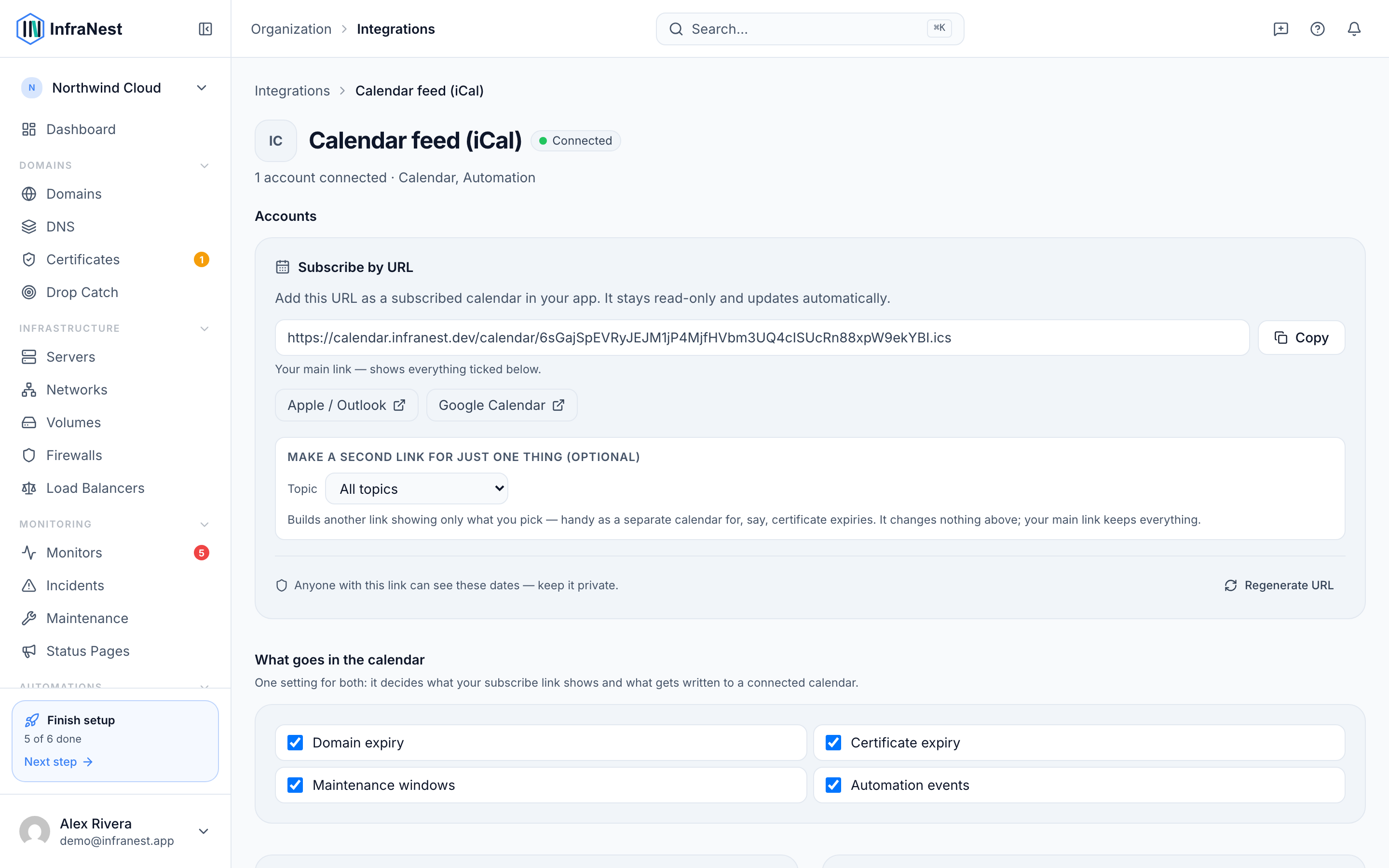
Find calendar sync in InfraNest
- Go to Integrations.
- Select Calendar.
- Choose Connect for one-click sign-in, or copy the calendar feed link to subscribe from your calendar app.
NoteOne-click connecting only appears if an administrator has set it up for your workspace. If you see "One-click Google Calendar isn't set up on this workspace yet", use the calendar feed instead — it works the same for you.
Good to know
- The calendar is read-only: you can't create InfraNest items by adding an event.
- Removing the connection stops the sync; events already in your calendar stay until you delete them.
- If a connection stops working, you'll see Reconnect needed — the calendar provider revoked our access, and nothing syncs until you reconnect.
TipIf you're not sure which method to use, try connecting your calendar first — it's the recommended option and needs no ongoing maintenance on your part.
Was this article helpful?
Related articles
Subscribe with a calendar feed (iCal)Subscribe to a private link and your renewals, certificate expiries and maintenance windows appear in any calendar app — Google Calendar, Outlook, Apple…Connect Google CalendarConnect Google Calendar and your domain renewals, certificate expiries and maintenance windows appear in a dedicated InfraNest calendar that updates itself.Connect Outlook CalendarConnect Outlook Calendar — Microsoft 365 or Outlook.com — and your renewals, certificate expiries and maintenance windows appear in a dedicated InfraNest…