

This article is for anyone who wants InfraNest to talk to PagerDuty automatically — paging on-call for things beyond a monitor going down, and reacting when a responder acts on an incident. It's for you if you build your own rules in Automations.
Overview
- Lets your automations trigger, acknowledge or resolve PagerDuty incidents, and react when incidents change state in PagerDuty.
- Works alongside, but separately from, monitor-based paging.
- Needs a one-time PagerDuty connection set up inside the automation builder.
NotePaging from a monitor doesn't need any of this — that uses the PagerDuty alert destination instead. See Connect PagerDuty for that setup. This article covers automations you build yourself in Automations.
Connect PagerDuty to an automation
- Open your automation in Automations and go to add a PagerDuty action or trigger.
- When prompted for a connection, choose Add connection.
- Pick one of two ways to connect:
- or use a token — paste the same 32-character Events API v2 Integration Key that the alert destination uses, taken from a PagerDuty service. This is the simplest option, and the one to use if you self-host.
- Connect with {provider} — sign in to PagerDuty, then use Choose a PagerDuty service to pick the service you want to page. InfraNest reads that service's key for you, so there's nothing to copy.
- Save the connection. Until a service is chosen, actions using this connection won't run, and the builder will tell you so.
NoteOne connection pages one PagerDuty service. Add another connection if you need to page a different service or team.
React to PagerDuty (triggers)
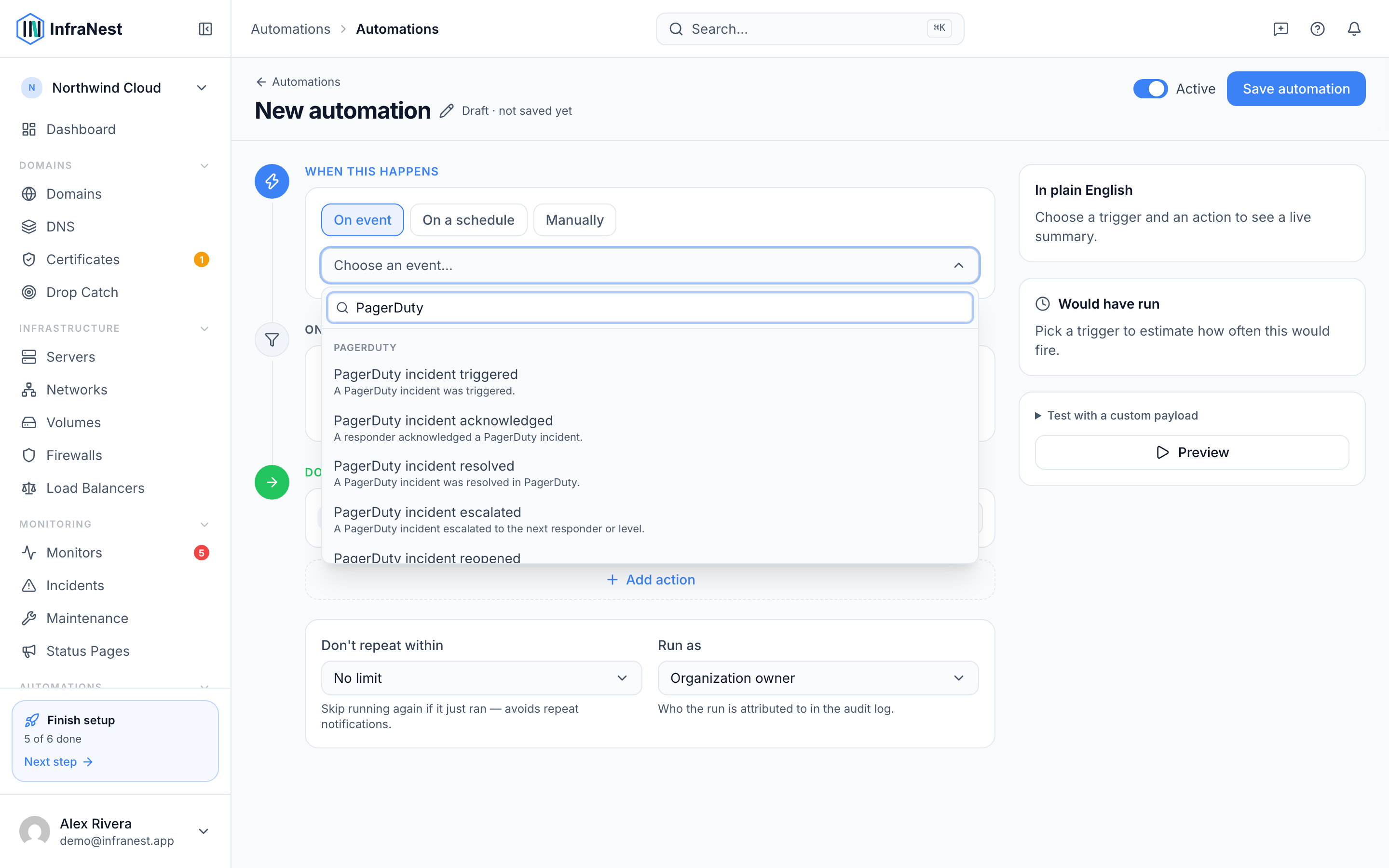
- In your automation, set When this happens and choose one of the PagerDuty triggers:
- PagerDuty incident triggered
- PagerDuty incident acknowledged — a responder picked it up
- PagerDuty incident resolved
- PagerDuty incident escalated — it moved to the next responder or level
- PagerDuty incident reopened
- Use the data the trigger gives you — the incident's title, service, urgency, the responder who acted, a link to the incident, and its PagerDuty incident ID — in your later steps.
- Make sure the webhook is set up in PagerDuty (this is the same one used for two-way sync — see Set up PagerDuty two-way sync). When creating it, subscribe it to
incident.triggered,incident.escalatedandincident.reopened, on top of the acknowledged/resolved pair that two-way sync already uses.
Page PagerDuty (actions)
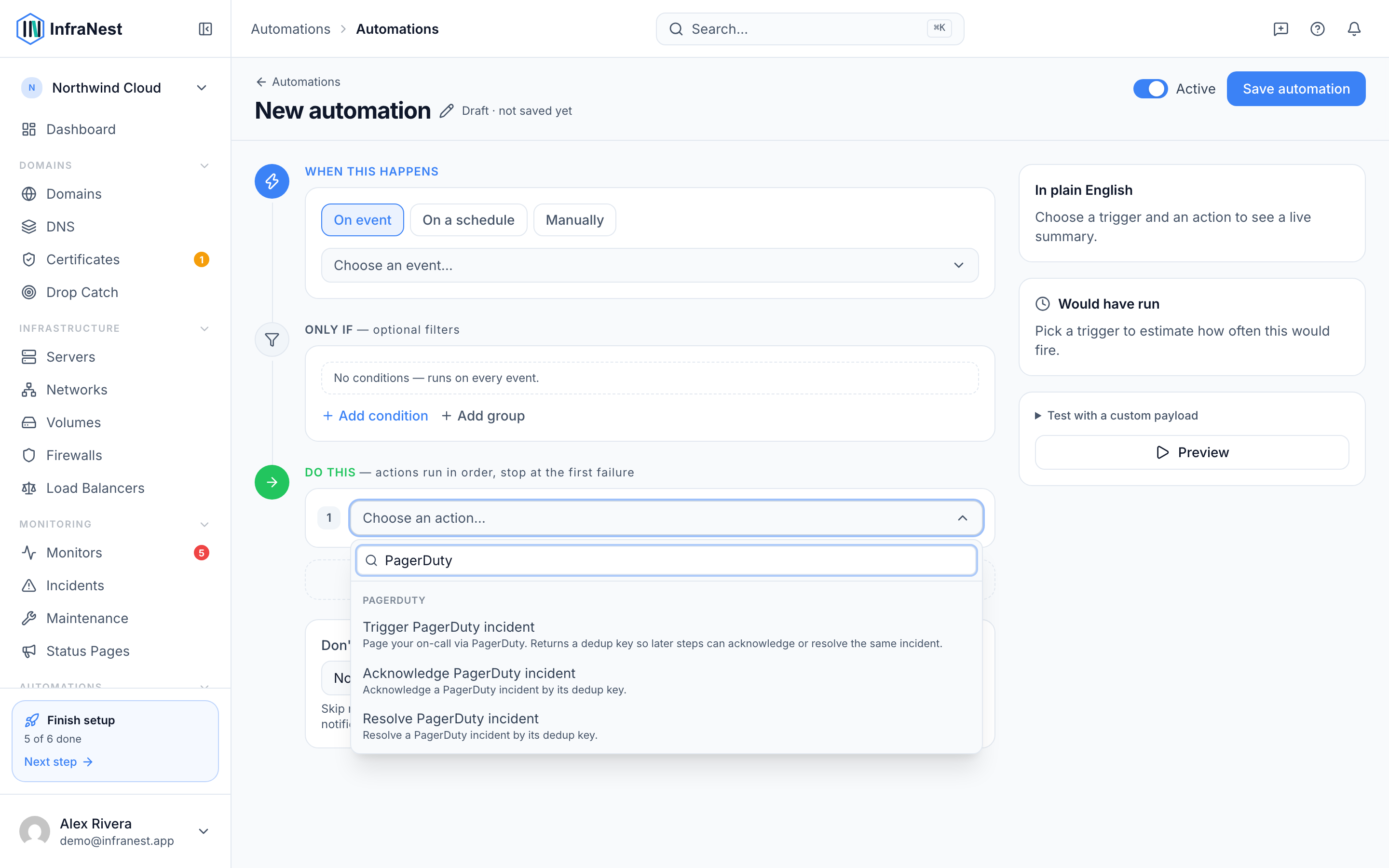
- In your automation, under Do this, choose Add action.
- Add one or more of:
- Trigger PagerDuty incident — fill in a summary, choose a Severity (critical, error, warning or info), and optionally set a grouping key.
- Acknowledge PagerDuty incident — enter the grouping key of the incident to acknowledge.
- Resolve PagerDuty incident — enter the grouping key of the incident to resolve.
About the grouping key
PagerDuty groups repeated pages about the same problem under one incident, using what it calls a dedup key. It's the handle for everything that happens after the page:
- Leave it blank when triggering, and InfraNest generates one — later steps in the same rule can then acknowledge or resolve that exact incident.
- Set it yourself (a placeholder from the trigger works well — a monitor ID, a domain name, a job name) when a later, separate rule needs to resolve the incident an earlier rule opened.
TipTrigger the same grouping key twice and PagerDuty updates the open incident instead of paging again — useful for avoiding duplicate pages about the same problem.
Examples
- A certificate expires in 3 days → Trigger PagerDuty incident at warning severity, keyed to the domain — so the renewal chase has an owner.
- A backup job failed → page on-call; when the next run succeeds, Resolve PagerDuty incident using the same key.
- A PagerDuty incident was acknowledged → Post status-page announcement saying someone is on it.
- A PagerDuty incident escalated → Send notification to your team channel, so the wider team sees it before it climbs further.
- A domain is about to expire and auto-renew is off → page on-call rather than sending another email nobody opens.
Tips
- Severity is yours to choose per action. Monitor-driven paging maps severity from the monitor's state instead.
- Automations page through the same Events API v2 key as the alert destination — the paging path never needs a PagerDuty REST key. Connecting with PagerDuty is only there to save you copying a key.
Troubleshooting
- A PagerDuty trigger never fires — check that the webhook in PagerDuty is subscribed to that event type.
- An action won't run — if you connected with PagerDuty, make sure you've picked a service under Choose a PagerDuty service; actions won't run until one is chosen.
- An action shows a Pro badge — some PagerDuty actions may require a higher plan.
Was this article helpful?