

This article explains the difference between the two ways InfraNest talks to other tools, and helps you pick the right one for what you're trying to do.
Overview
- An incoming endpoint lets another tool start something in InfraNest.
- An outgoing webhook lets InfraNest tell another tool that something happened.
- Knowing which direction you need saves time — the setup for each lives in a different place.
Which one do you want?
| Incoming endpoint | Outgoing webhook | |
|---|---|---|
| Direction | another tool → InfraNest | InfraNest → another tool |
| You give out | a URL InfraNest generates | a URL the other tool gives you |
| Use it to | let something else start an automation | tell something else that an event happened |
| Set up in | the integration, or your automation | Settings → Webhooks |
The short version: an incoming endpoint is a doorbell somebody else presses. An outgoing webhook is us ringing theirs.
Set up an incoming endpoint
- Open the integration or automation where you want another tool to be able to start things.
- Create the endpoint — InfraNest generates a private URL for you.
- Give the endpoint a name so you can tell at a glance which tool it belongs to.
- Copy the URL and paste it into the other tool's settings, wherever it asks for a URL to call.
- Use whatever the other system sends as the trigger data for your automation's rule.
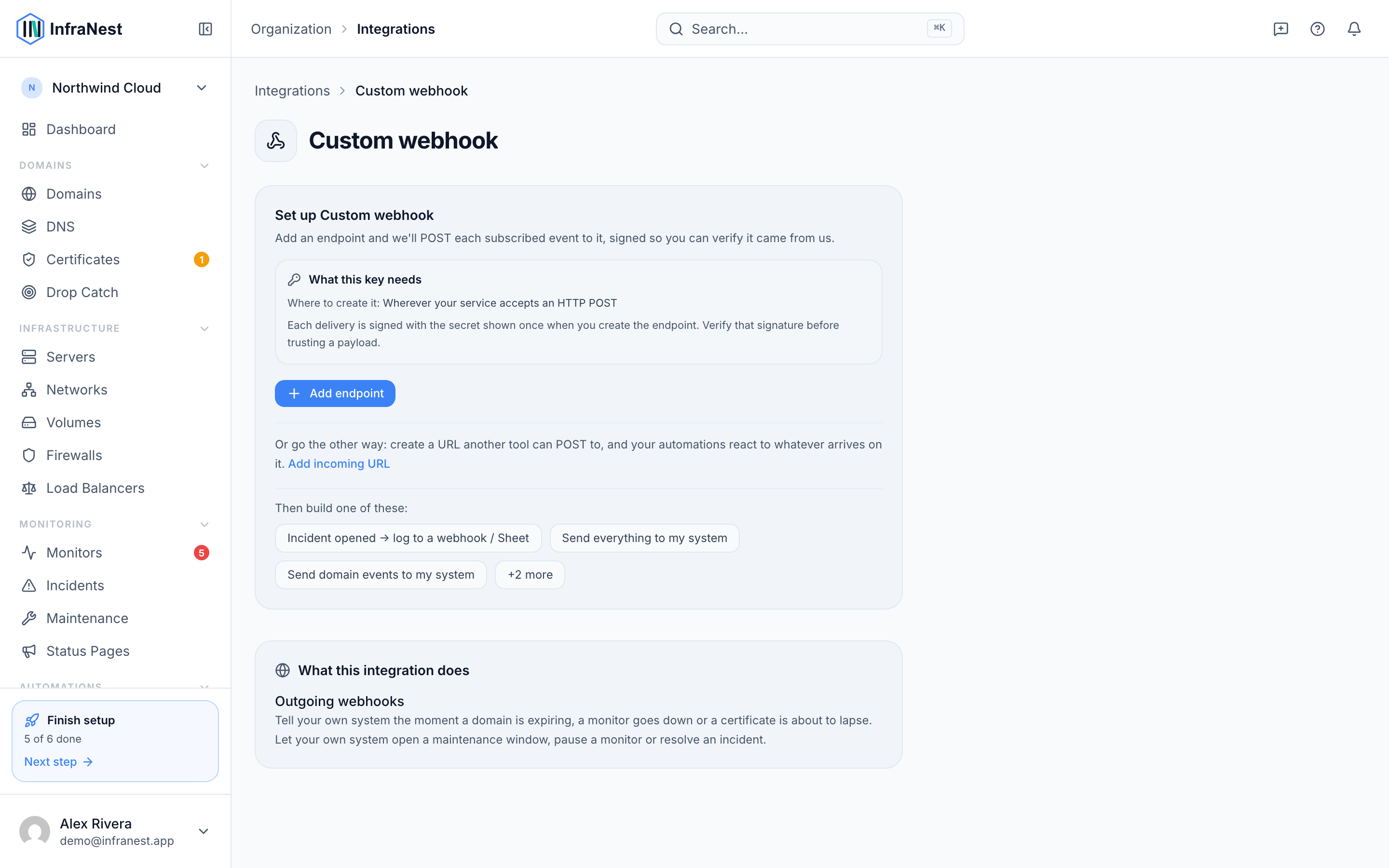
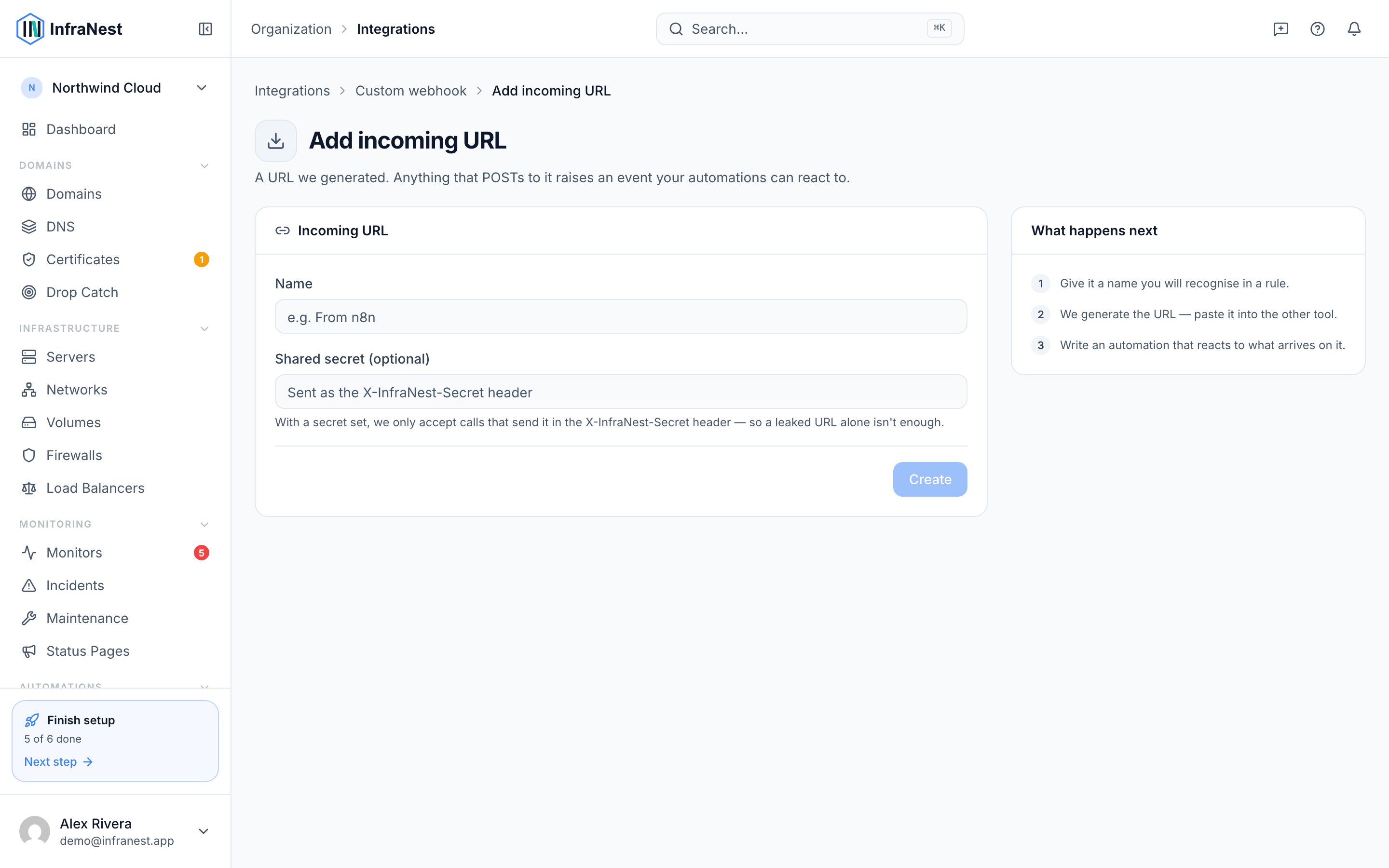
Because endpoints are named, you can turn any single one off without affecting the others.
WarningThe URL itself is the credential. Anyone who has it can trigger that automation, so treat it like a password — and if it ever leaks, regenerate it.
Set up an outgoing webhook
- Go to Settings → Webhooks.
- Choose Add to create a new webhook.
- Paste in the URL the other tool gave you.
- Pick the events you want InfraNest to send — for example a monitor going down, a domain renewing, or a watched domain becoming available.
- Save your changes.
Every delivery is signed and logged, so you can check what was sent and whether it arrived. See the Webhooks article for more detail.
Still not sure which to use?
Ask which side starts the conversation:
- "When X happens in my other tool, do something in InfraNest" → use an incoming endpoint.
- "When X happens in InfraNest, tell my other tool" → use an outgoing webhook.
- "Both" → you'll need one of each; they work independently of each other.
Tips
NoteThese two features are unrelated under the hood — setting up one has no effect on the other, so it's fine to use just one, both, or neither.
Was this article helpful?