

Connect your Outlook Calendar to InfraNest so renewals, certificate expiries and maintenance windows show up automatically in a dedicated calendar that stays up to date on its own. This is for anyone using Microsoft 365 or Outlook.com who wants their InfraNest schedule visible alongside their regular calendar.
Overview
- Automatically syncs renewals, certificate expiries and maintenance windows into a dedicated InfraNest calendar
- Works with Microsoft 365 and Outlook.com accounts
- Keeps itself current after the first sync — no manual updates needed
- Doesn't touch or change any of your existing calendars
NoteOne-click connecting has to be switched on for your workspace by an administrator first. If it isn't available, the Calendar page will let you know — in that case, use Subscribe with a calendar feed (iCal) instead, which needs no setup.
Connect Outlook Calendar
- Go to Integrations → Calendar.
- Under Connect your calendar, select Connect Outlook Calendar.
- Sign in with your Microsoft account and accept the permission request.
- You're returned to InfraNest, and the first sync starts straight away.
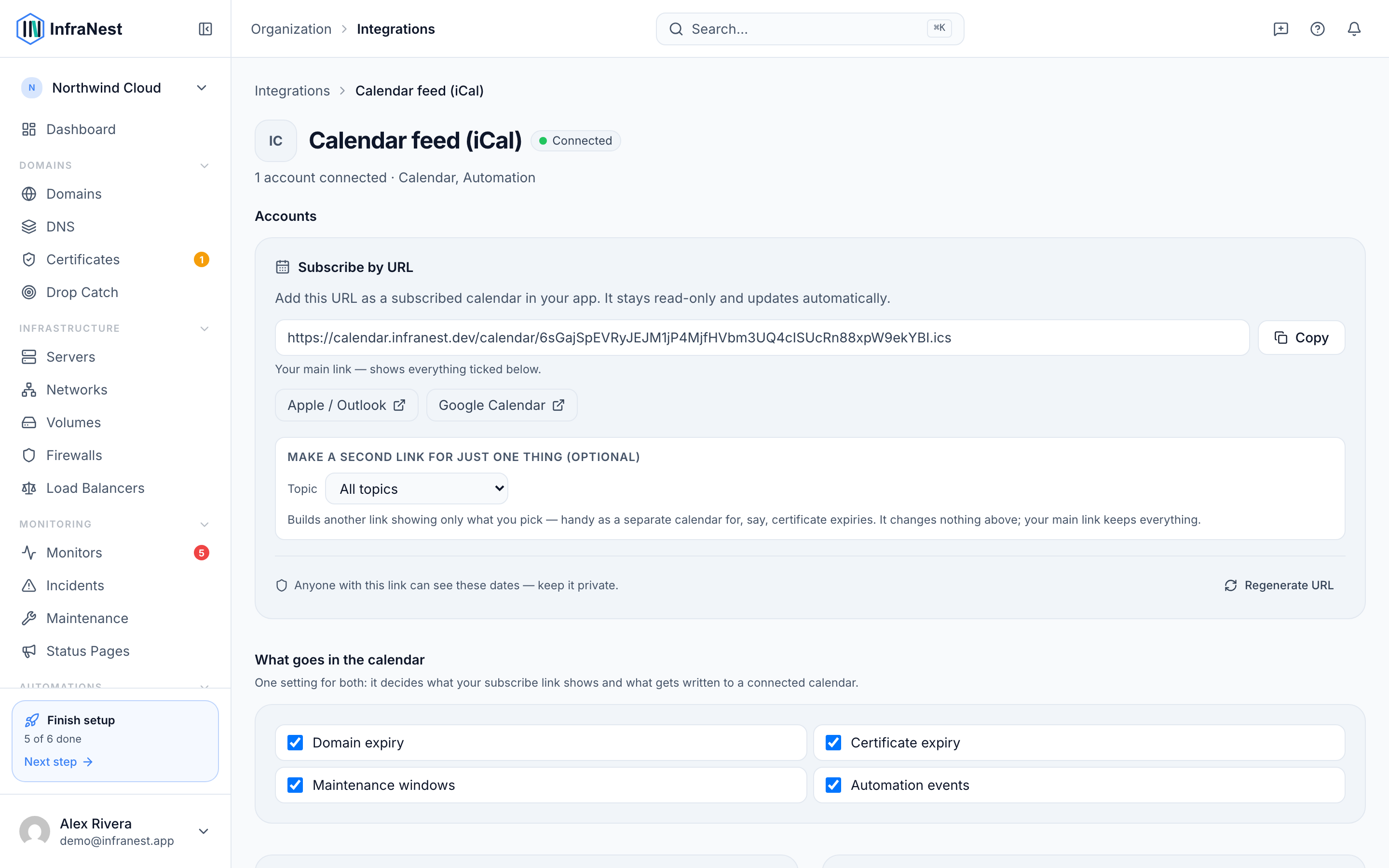
Events go into their own InfraNest calendar, so nothing of yours is changed.
NoteOn a work or school account, your organisation may require an administrator to approve the permission request first. If you see a "needs admin approval" message, that's Microsoft asking, not InfraNest.
Troubleshooting
- "Reconnect needed" — Microsoft revoked our access. Select Connect Outlook Calendar again.
- Nothing appears — make sure the InfraNest calendar is ticked in Outlook's calendar list.
Was this article helpful?