

Connect your GitHub account or organisation to InfraNest so your automations can react to activity in your repositories and take action on GitHub for you.
Overview
- Once connected, InfraNest can watch GitHub activity such as pushes, pull requests, issues, workflow runs, deployments, releases and checks.
- InfraNest can also act on GitHub as part of an automation — for example, open an issue, run a workflow, merge a pull request or update a deployment's status.
- Everything runs through the connection you set up here, and you can connect more than one account.
Connect GitHub
The easiest and most secure way to connect is the automatic setup, which installs the InfraNest app on your GitHub account or organisation.
- Go to Integrations and open GitHub.
- Select Connect, then Set up automatically.
- A GitHub window opens. Choose the account or organisation to install on, pick All repositories or just the ones you want InfraNest to see, and confirm.
- You're returned to InfraNest and the connection appears under Accounts.
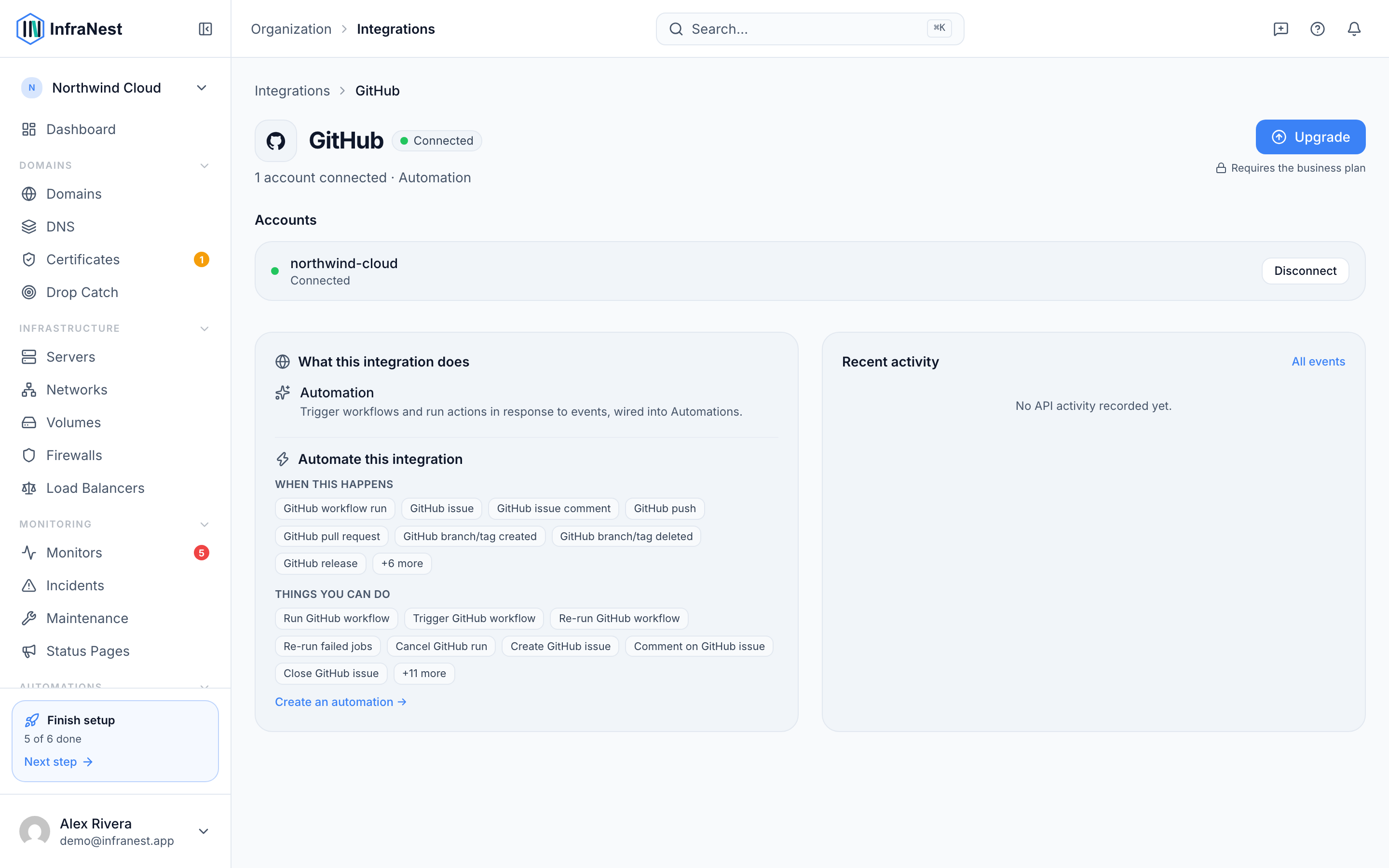
You can connect more than one account — for example your personal account and an organisation. Each shows up as its own connection.
TipSet up automatically is recommended wherever possible — it's more secure and there are no tokens for you to manage.
Connect with a token instead
If you can't install an app (for example, on a self-hosted GitHub), choose Use a token instead and paste a personal access token with repository access.
Choose what InfraNest can see
- During Set up automatically, select the repositories you want InfraNest to access — either All repositories or specific ones.
- To change this later, open the app on GitHub: go to your account or organisation Settings → GitHub Apps → InfraNest.
- Adjust the selected repositories from there.
Disconnect GitHub
- Open GitHub in the Integrations hub.
- Go to Accounts.
- Select Disconnect.
WarningDisconnecting also uninstalls the app on GitHub, so InfraNest no longer has access. If the same installation is shared with another workspace, it's left in place there.
Tips
- Your credentials are stored securely and never shown again.
- Team-based features (like requesting a review from a team) only work when you connect an organisation, not a personal account.
Troubleshooting
- Set up automatically isn't offered: the connection only works once an administrator has set up GitHub for your InfraNest instance. Ask your administrator to finish the GitHub setup.
Once connected, head to Automate with GitHub to use GitHub triggers and actions in your automation rules.
Was this article helpful?