

Manage your InfraNest plan, keep an eye on your usage, and control what shows up on your invoices — for anyone who looks after billing on their account.
Overview
- InfraNest offers plans such as Free, Pro and Business, each setting which features you get, how many of each thing you can have (certificates, domains, DNS zones, servers, monitors, status pages, dynamic IPs, team members, webhooks and more), and rate limits on some actions.
- Your usage meters show how close you are to each limit.
- You control how your invoices are addressed, and whether they include VAT.
Check your usage
- Go to Billing.
- Look at the usage meters to see how much of each limit you're currently using.
Change your plan
- Go to Billing.
- Choose a plan and confirm.
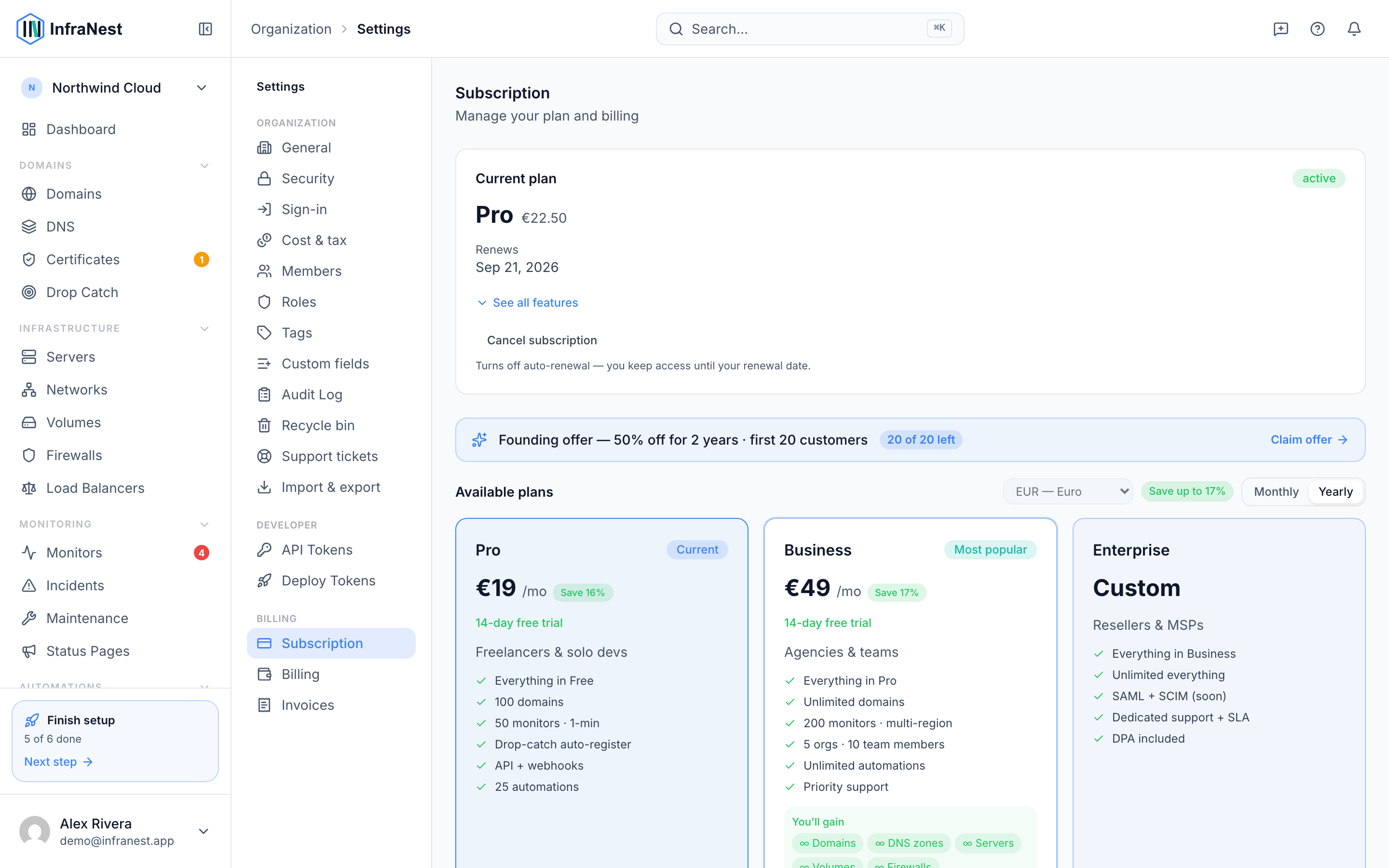
Changes apply straight away, and InfraNest prorates the difference, so you only pay for what you use.
Update your invoice details
- Go to Billing.
- Open Billing details.
- Fill in the fields that apply to you:
- Company name — the name your invoice is made out to. If you're not a company, use your own name.
- Address — two lines. Use the second line for a floor or suite, or for the person or department the invoice should go to, like "Attn: Finance".
- Postal code, city and country — the country also decides how VAT is handled.
- VAT ID — if you have one, add it. See VAT on your invoices below.
- Reference / PO number — your own reference, up to 30 characters, printed on the invoice.
- Also send invoices to — up to five extra email addresses, for example your bookkeeper. Everyone who receives the invoice is listed right below the field.
- Select Save changes.
NoteChanges apply to your next invoice only. An invoice that's already been issued doesn't change.
VAT on your invoices
What your invoice shows depends on where you are and whether you've given us a VAT number.
| Your situation | What you pay |
|---|---|
| Business or private customer in Germany | German VAT |
| Business elsewhere in the EU, VAT number confirmed | No VAT — reverse-charged, and your invoice says so |
| Elsewhere in the EU without a confirmed VAT number | German VAT |
| Outside the EU | No VAT — outside its scope |
Add your VAT number and pay less
If you're a business in the EU outside Germany, adding your VAT number means your future invoices carry no VAT at all. Until you do, we have to charge German VAT — a company name on its own isn't enough, because the VAT number is the part we can verify.
If you see a note saying you're being charged German VAT and might not need to be, that's why. Add the number under Billing details and it applies to your next invoice.
"We couldn't verify your VAT number"
This means the EU's VAT checking service didn't answer — not that your number is wrong. It's a shared service across EU countries, and any one country's system can be briefly unavailable.
Nothing is lost: we keep trying in the background, and you can select Check again yourself. While it's unverified we charge German VAT, which you can reclaim or which we can correct once the check succeeds.
"That VAT number isn't recognised"
Here the check did answer, and didn't recognise the number. Worth checking:
- the country prefix is included (for example
DE123456789, not123456789), - there are no typos, and
- the number is actually registered for EU cross-border trade — some national numbers aren't, and have to be activated with your own tax office.
Already-issued invoices don't change
If your VAT number is confirmed after an invoice has gone out, that invoice stays as it is — VAT applies from your next one. Get in touch if an issued invoice needs correcting and we'll look at it.
When you reach a limit
- A feature that's off on your plan shows an upgrade prompt.
- At a count limit, you'll see an "at limit" note — existing items keep working, you just can't add more until you upgrade.
- Some actions are rate-limited; if you go too fast, you'll be asked to try again shortly.
Tips
TipIf you're a VAT-registered business outside Germany but inside the EU, add your VAT ID as soon as possible — it stops German VAT being charged on your future invoices.
Troubleshooting
- "We couldn't verify your VAT number" — usually temporary. Select Check again, or wait; we keep retrying automatically.
- "That VAT number isn't recognised" — double-check the country prefix and digits, and confirm the number is activated for EU cross-border trade with your tax office.
- An invoice looks wrong after fixing your VAT ID — that invoice was issued before the fix, so it won't update automatically. Contact us to have it corrected.
Was this article helpful?