

Manage the emails you personally receive and keep track of everything happening in your infrastructure through your in-app inbox.
Overview
- Choose which emails you personally get sent, separate from how your organisation's alerts are routed.
- Use the Notifications bell as an inbox for updates about your servers, domains, backups, and more.
- Mark items as read, open the related item, or clear out old notifications.
Set your notification preferences
- Go to your profile, then select Notifications.
- Choose which emails you'd like to receive.
- Pick your preferred email format.
- Select Save changes to apply your preferences.
NoteThis screen controls the emails sent to you personally. It's different from where your organisation's alerts are delivered — that's managed separately under Alert Channels.
Check your notifications inbox
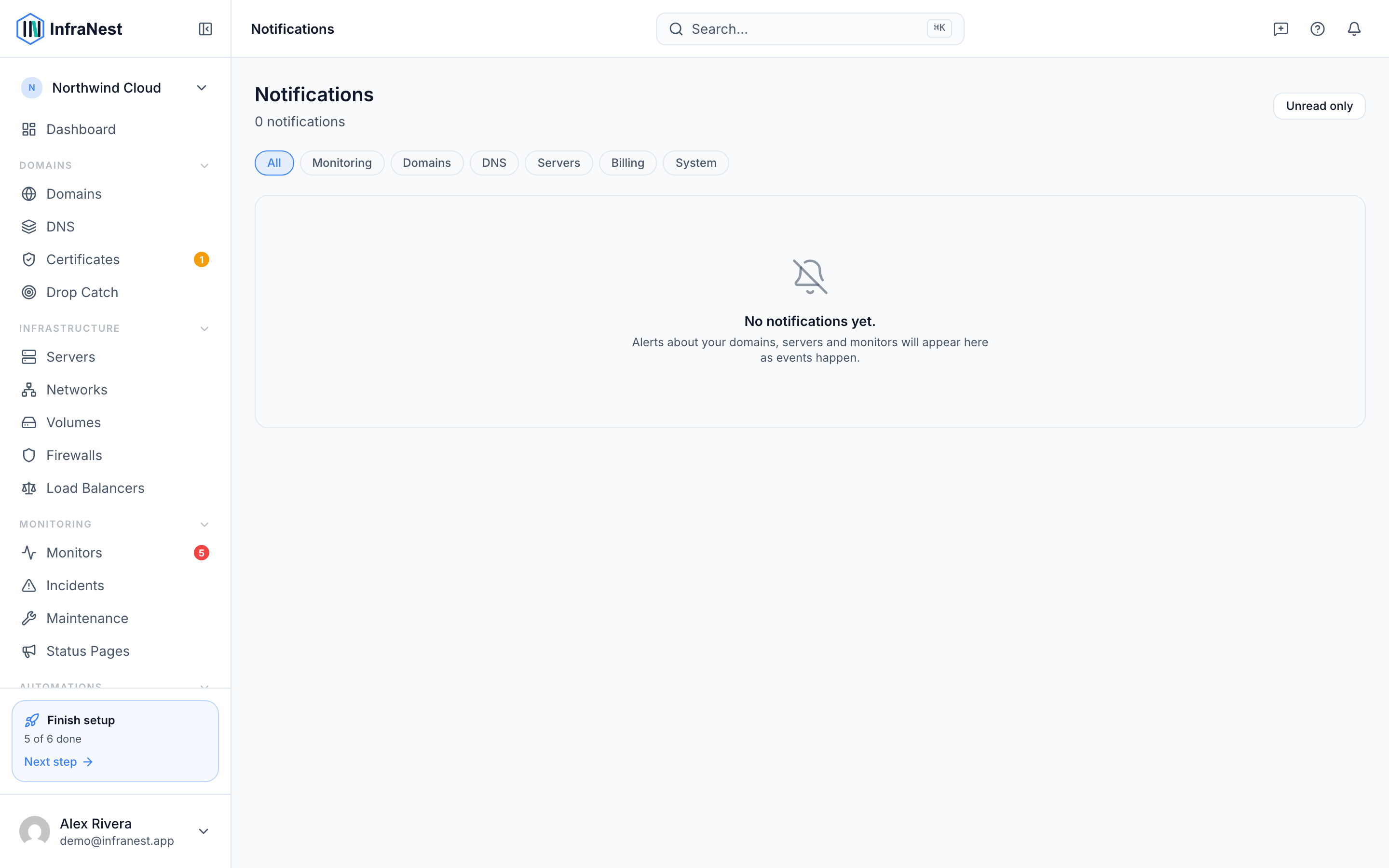
- Select the Notifications bell icon from anywhere in the app.
- Browse the list of recent notifications, such as server actions, backup status, domain changes, and billing updates.
- Use Unread only to filter the list down to items you haven't seen yet.
- Select Mark as read on an individual notification, or Mark all read to clear the whole list.
- Select a notification to Open the related item, such as a server, domain, or monitor.
- Select View all notifications to see your full notification history.
Tips
- If your inbox is getting cluttered, use Unread only to focus on what's new.
- Notifications cover a wide range of events — server power changes, backups, firewall updates, domain expiry warnings, and more — so it's worth checking in regularly rather than relying only on email.
Was this article helpful?
Related articles
Two-factor authenticationTwo-factor authentication (2FA) adds a second step to signing in — a code from an authenticator app — so your account is safe even if your password is stolen.Your account and sign-inYour Profile is where you manage yourself — separate from your organisation's settings. It covers how you sign in, your personal details, and your preferences.