

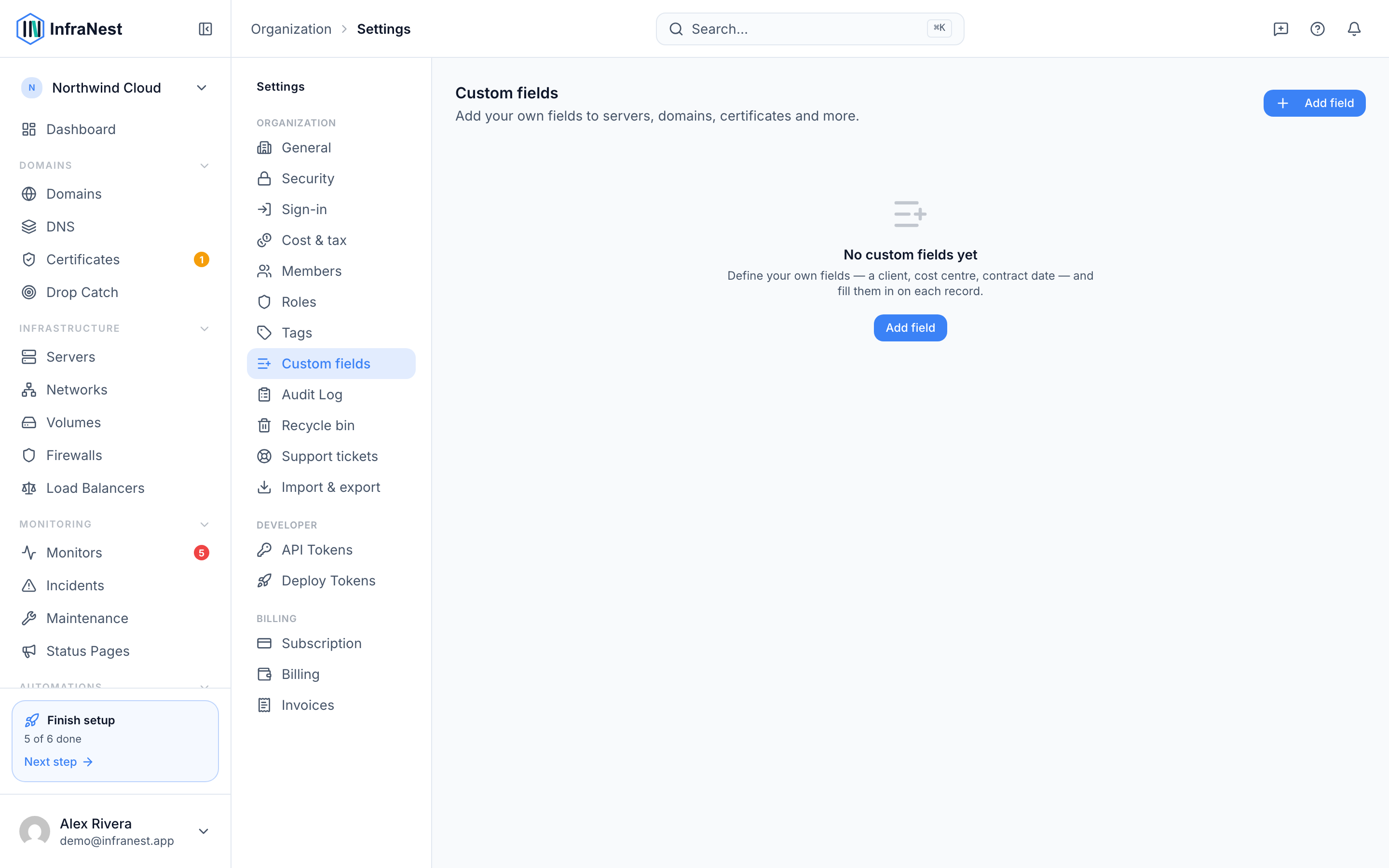
Custom fields let you add your own information to servers, domains, certificates and more — useful if you need to track things InfraNest doesn't already cover, like a client name or a contract date. This is for anyone who wants their inventory to reflect how their organization actually works.
Overview
- A custom field is something you define yourself — a bit of extra information attached to your records.
- Common examples: a Client or Cost centre field so you can see what belongs to whom, a Contract end date, or an Environment field (production, staging, test).
- A field shared across modules can group related records together in reports — for example, a Client field on both servers and domains lets the Cost report total spend per client.
Create a field
- Go to Settings → Custom fields.
- Select Add field.
- Give it a Label — for example Client, Cost centre, Contract end.
- Choose a Type: text, number, yes/no, date, link, choice, multiple choice or currency.
- For a choice field, list the Options — one per line.
- Under Applies to, pick the modules the field should show on.
- Choose whether to show it as a column in list views.
- Save.
Fill one in
- Open any record the field applies to — a server, domain, DNS zone or certificate.
- Find the Custom fields panel on that record.
- Enter or update the value — it saves as you go.
If you ticked show as a column, the field also appears as an optional column on that module's list page, where you can sort and filter by it.
Change or remove a field
- Go to Settings → Custom fields.
- Select the field you want to change.
- Edit its details, or delete it if you no longer need it.
WarningDeleting a field removes its values from every record too, and that can't be undone. If you only want it out of the way, un-tick the modules it applies to instead.
Good to know
- Custom fields are per organization — each organization defines its own.
- Values are included when you export data, so they travel with the rest of your inventory.
- Custom fields are part of a paid plan; if the option isn't there, check your plan.
NoteFields used on more than one module — like a Client field on both servers and domains — make it easy to see combined totals in the Cost report.
Was this article helpful?