

Your account settings are where you manage yourself — separate from your organisation's settings. This covers how you sign in, your personal details, and your preferences.
Overview
- Update your name, avatar and email
- Manage how you sign in, including your password and two-factor codes
- Review and sign out of active sessions
- Set your preferred theme and language
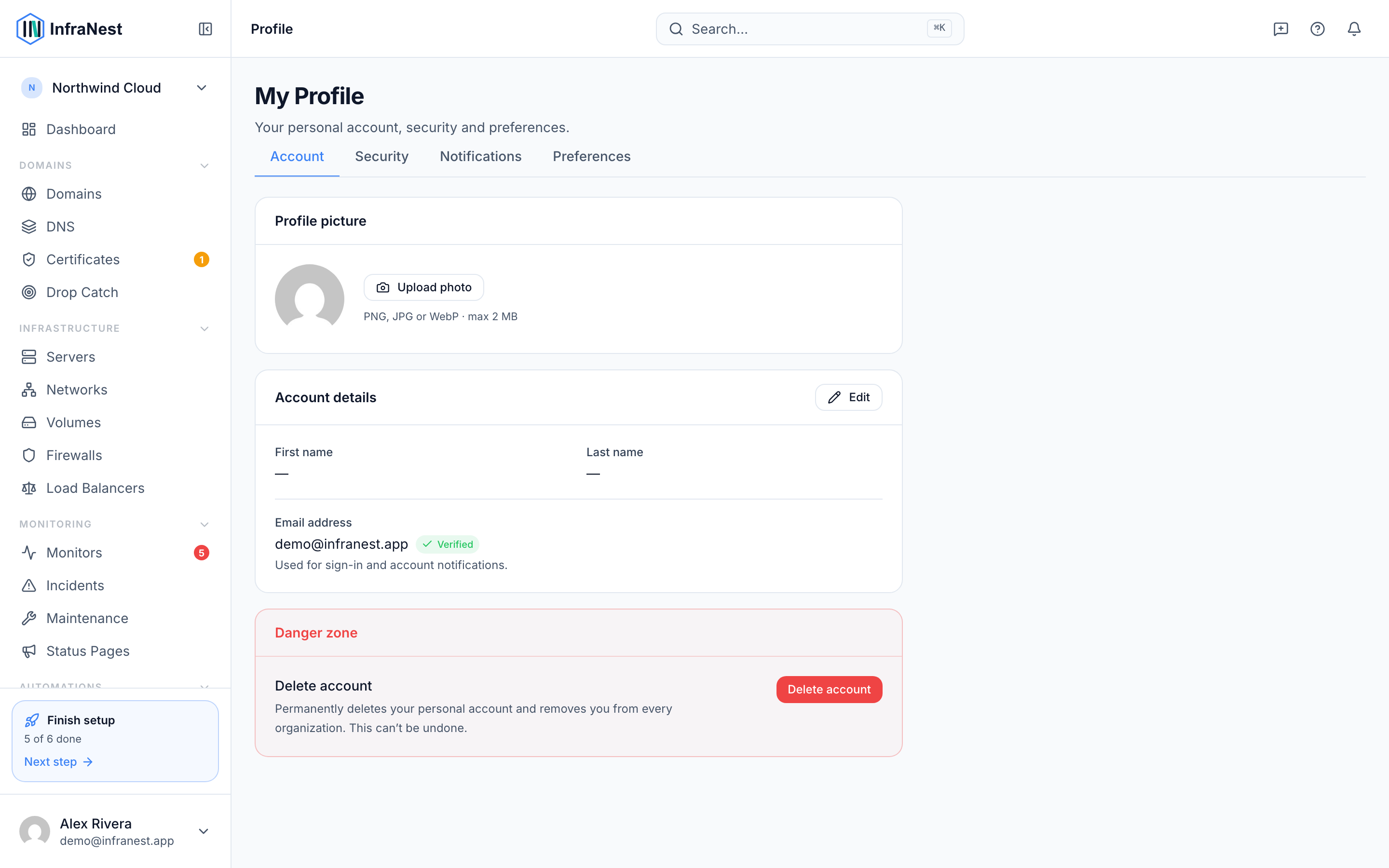
Update your details
- Open My profile.
- Update your name and avatar as needed.
- Check your email address — this is shown but changing it will require re-verification.
- Select Save changes to confirm.
NoteChanging your email means you'll need to re-verify the new address before it's active.
Sign in to your account
- On the sign-in page, enter your email and password, or choose a linked SSO provider such as Google or GitHub, if enabled.
- If two-factor authentication is turned on, enter your code when prompted after your password.
- If you've forgotten your password, select the option to request a reset link from the sign-in page, then follow the link to set a new one.
Change your password
- Open My profile.
- Go to the security section.
- You may be asked to confirm your current password first.
- Enter your new password and select Save changes.
Review active sessions
- Open My profile.
- Go to the security section.
- Review the list of sessions, including device, location and last active details.
- Select sign out on any session you don't recognise.
TipIf you spot a session you don't recognise, sign it out and change your password right away.
Set your preferences
- Open My profile.
- Go to the preferences section.
- Choose your theme (light or dark).
- Choose your language — English, Dutch, German or French.
- Select Save changes.
Was this article helpful?