

SSL/TLS certificates keep the connections to your websites and services secure — this article explains how InfraNest helps you track and manage all of them, and is written for anyone responsible for keeping domains protected, not just technical specialists.
Overview
- InfraNest keeps a single, deduplicated inventory of every certificate you have, no matter where it lives or who issued it.
- It tracks expiry dates and warns you before something breaks — auto-renewing certificates stay quiet unless a renewal actually fails.
- It checks that certificates are installed correctly, flags weak or misconfigured setups, and shows you which domains have no protection at all.
- It can also catch certificates issued for your domains that you didn't request, which may be a sign of a security problem.
Find all your certificates
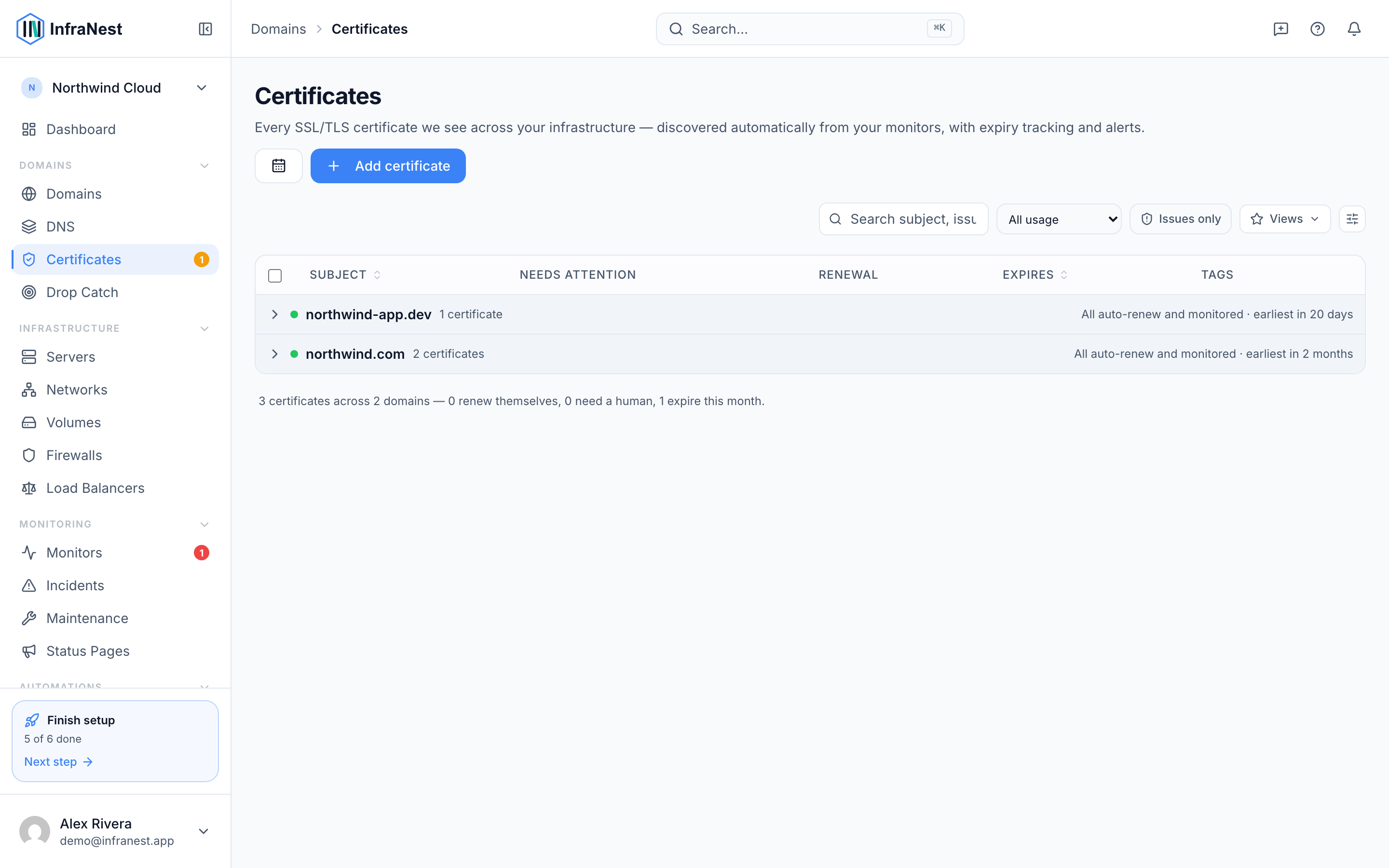
- Open Certificates from the sidebar.
- Use the Inventory tab to see every certificate InfraNest has found — through monitors, scans, pasted certificates and connected providers.
- Use Search subject, issuer or SAN… to find a specific certificate, or use Filter and Tags to narrow the list.
- Select View details on any certificate to see its full Certificate chain, Health and history.
NoteCertificates found in more than one place are automatically combined into a single entry, so you won't see duplicates.
Check domain coverage
- Open Certificates, then select the Coverage tab.
- Review the list to see which domains are covered, which are Approaching expiry, and which have No SSL monitor.
- Select Scan next to any domain to check it immediately, or use Scan an endpoint to check a specific address.
- Select Add SSL monitor to start tracking a domain that isn't monitored yet.
Review a certificate's health
- Open Certificates and select a certificate to view its Details.
- Select Show the security checks to see the full breakdown, including Chain trust, Key strength, Signature algorithm, Validity period and Hostname coverage.
- Look at the Security rating {letter} and {passed} of {total} passed summary to understand overall Security posture.
- If an issue is found, select How to fix this for plain-language guidance — for example, when the Chain is incomplete or untrusted or a certificate has a Weak key or signature.
TipIf a certificate shows Nothing will renew this certificate, set a reminder to replace it manually before it expires — InfraNest won't renew it for you.
Troubleshooting
- Missing intermediate — the certificate chain is incomplete; select Download the issuing intermediate to fix it.
- Untrusted root or Not trusted by browsers (self-signed) — visitors will see security warnings; check with your certificate provider.
- Unexpected issuance (CAA) — a certificate was issued by an issuer not listed in your DNS CAA records; review your CAA policy and use Manage CAA if needed.
- Discovered, not monitored — InfraNest found a certificate but isn't actively tracking it yet; select Add SSL monitor to start monitoring it.
Was this article helpful?
Related articles
Add a certificateMost certificates appear on their own from your monitors and connected providers, but you can also add one directly by scanning a server or pasting it in.Certificate coverageWhich of your domains have no certificate? InfraNest works that out for you and says so on the certificates list itself — you don't have to compare two lists…Certificate healthInfraNest grades every certificate for how healthy and correctly-installed it is, so you can catch problems before they cause an outage.Where certificates come fromInfraNest finds your certificates in several ways and combines them all into one deduplicated inventory. Each certificate is labelled with where it was found.