

Add a certificate to InfraNest by scanning a live server or pasting its details directly, ideal for anyone who wants a certificate tracked before it's picked up automatically.
Overview
- Most certificates show up on their own once a monitor or connected provider detects them.
- You can also add one manually if you want it in your inventory right away.
- Certificates can be added by scanning a server or by pasting the certificate text.
Scan an endpoint
- Go to Certificates and select Add certificate, then Scan an endpoint.
- Enter the host (and port if it's not the default).
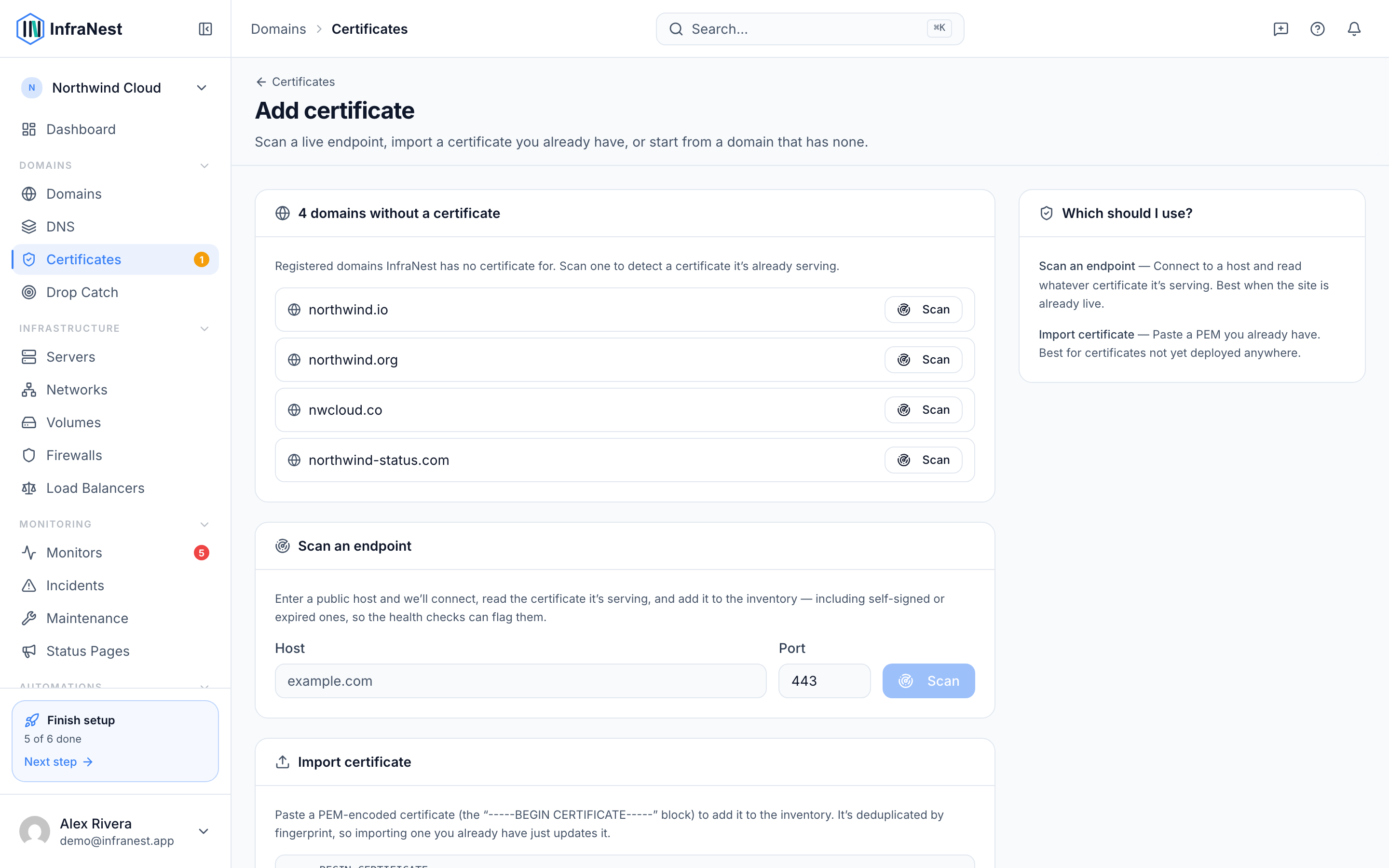
- InfraNest connects to the server, reads the certificate it's serving (along with its chain), and adds it to your inventory.
NoteScanning deliberately captures self-signed, expired or mismatched certificates too, so InfraNest's health checks can flag any problems with them.
Paste a certificate
- Go to Certificates and select Add certificate, then Import certificate.
- Paste in the certificate text to add it directly.
NoteHowever a certificate is added, InfraNest merges it with any matching one already in your inventory — the same certificate never shows up twice.
Was this article helpful?
Related articles
About SSL certificatesInfraNest keeps a single inventory of all your SSL/TLS certificates — wherever they live and whoever issued them — tracks when they expire, checks they're…Certificate coverageWhich of your domains have no certificate? InfraNest works that out for you and says so on the certificates list itself — you don't have to compare two lists…Certificate healthInfraNest grades every certificate for how healthy and correctly-installed it is, so you can catch problems before they cause an outage.Where certificates come fromInfraNest finds your certificates in several ways and combines them all into one deduplicated inventory. Each certificate is labelled with where it was found.