

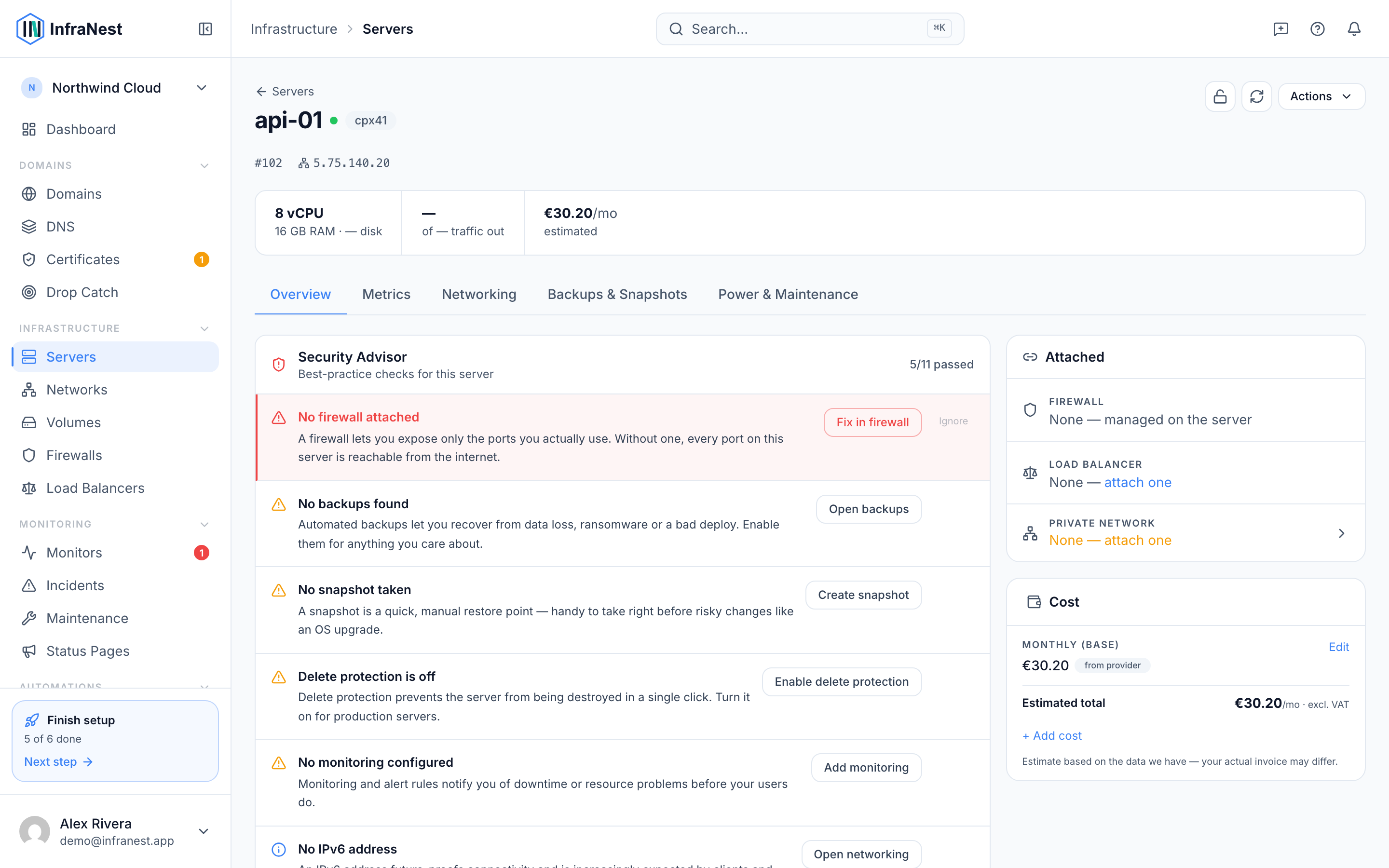
Manage a server from its own page, where you can control its power state, rebuild it, recover it, and configure its networking. This is for anyone responsible for keeping a server running smoothly.
Overview
- Control the server's power state, including reboot, shutdown, and hard reset.
- Reinstall the server with Rebuild, or recover a broken server with Rescue.
- Reset the root password or mount an ISO image.
- Open a live web console for direct access.
- Turn on delete protection and manage networking settings.
- Every action you take is recorded in the Audit Log.
Control power and lifecycle
- Open the server you want to manage from Servers.
- Go to the Power & Maintenance tab.
- Under Power, choose Power on, Power off, Shutdown, Power Reset, or reboot as needed.
- To reinstall the server, use Rebuild and select an image.
- If the server won't start, use Rescue to boot into a recovery environment.
- To reset access, use Reset root password.
- To attach or detach an ISO, go to ISO Images and use Mount or Unmount.
- To open a live console, select Console and wait for Requesting console… to finish connecting.
WarningRebuild reinstalls the server from scratch and erases its current contents. Take a Snapshot first if you might need the data.
Protect a server from deletion
- Open the server's page.
- Find the Delete protection is off status (or Delete protection is active if already on).
- Turn on delete protection so the server can't be removed by accident.
- To remove it later, go to Danger zone and disable protection before using Delete server.
Manage networking
- Open the server's page and go to Networking.
- Manage the server's public network with Enable public network or Disable public network.
- Join or leave a Private network as needed.
- Configure IPv6 if required.
- Set up reverse DNS by editing the PTR record — see Set reverse DNS (PTR) for details.
NoteEvery action you take on a server — power changes, rebuilds, networking updates — is recorded in your Audit Log for reference.
Troubleshooting
- If a server won't boot, try Rescue to access a recovery environment and fix the issue.
- If you're locked out, use Reset root password to regain access.
- If networking looks wrong, check Networking for the server's public network, private network, and IPv6 status.
Was this article helpful?
Related articles
About cloud serversInfraNest brings your cloud servers — and the firewalls, volumes, networks and load balancers around them — into one place, so you can run and secure them…Set reverse DNS (PTR)Reverse DNS (a PTR record) maps a server's IP address back to a hostname — useful for mail servers and clean logs.Create a serverProvision a new cloud server through one of your connected providers, without leaving InfraNest.Server backups and snapshotsProtect a server's data with provider backups and your own snapshots.