

Keep a copy of your server's data so you can recover quickly if something goes wrong — this article is for anyone who wants to protect their server against accidental changes or data loss.
Overview
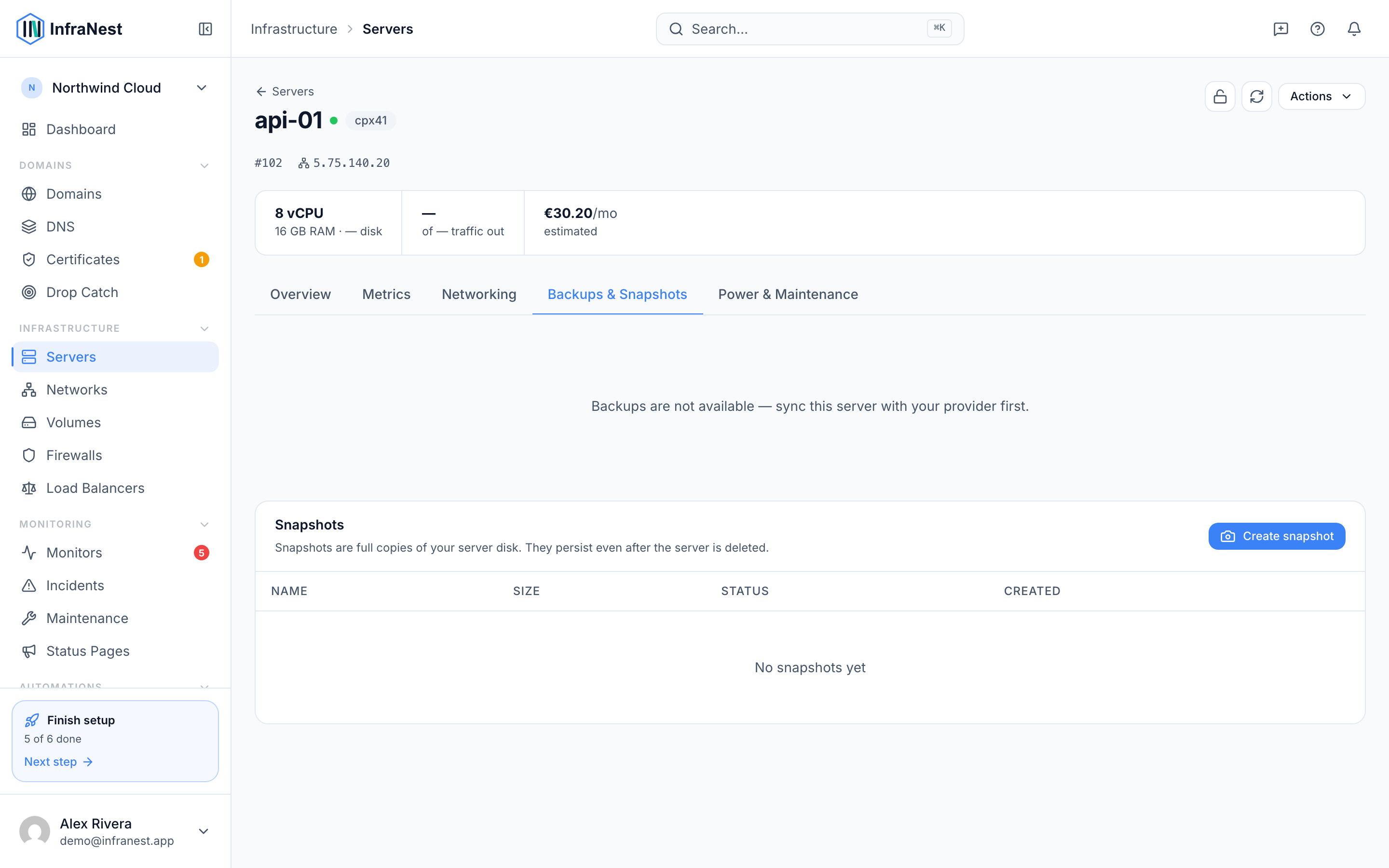
- Backups are scheduled images that your provider takes of your server automatically.
- Snapshots are point-in-time images that you create yourself, useful right before a risky change.
- Both can be managed from the server's page, and both let you restore your server to an earlier state.
Enable and manage backups
- Open the server, then go to the Backups tab.
- Turn on Automatic backups, or use Start manual backup to trigger one right away.
- In the backups list, you can restore a backup or use Delete backup to remove one you no longer need.
Create and manage snapshots
- Open the server, then go to the Snapshots tab.
- Select Create to make a new snapshot.
- From the snapshot list you can restore it, use Rename to give it a clearer name, or protect it so it can't be deleted by accident. You can also Delete a snapshot you no longer need.
TipTake a snapshot before a rebuild or any big change — it's the quickest way back if something goes wrong.
Troubleshooting
- If Backups could not be enabled, check your account settings and try again.
- If a backup shows Delete failed, wait a moment and retry — the backup may still be in use.
- If there's Nothing to restore from, you'll need to enable backups or create a snapshot first before you can restore.
Was this article helpful?
Related articles
About cloud serversInfraNest brings your cloud servers — and the firewalls, volumes, networks and load balancers around them — into one place, so you can run and secure them…Manage a serverOpen a server to control its whole lifecycle — power, rebuilds, recovery, networking and more.Set reverse DNS (PTR)Reverse DNS (a PTR record) maps a server's IP address back to a hostname — useful for mail servers and clean logs.Create a serverProvision a new cloud server through one of your connected providers, without leaving InfraNest.