

If your Dynamic IP isn't picking up your address, or your DNS records aren't following it, this guide walks you through the likely causes based on what you're seeing.
Overview
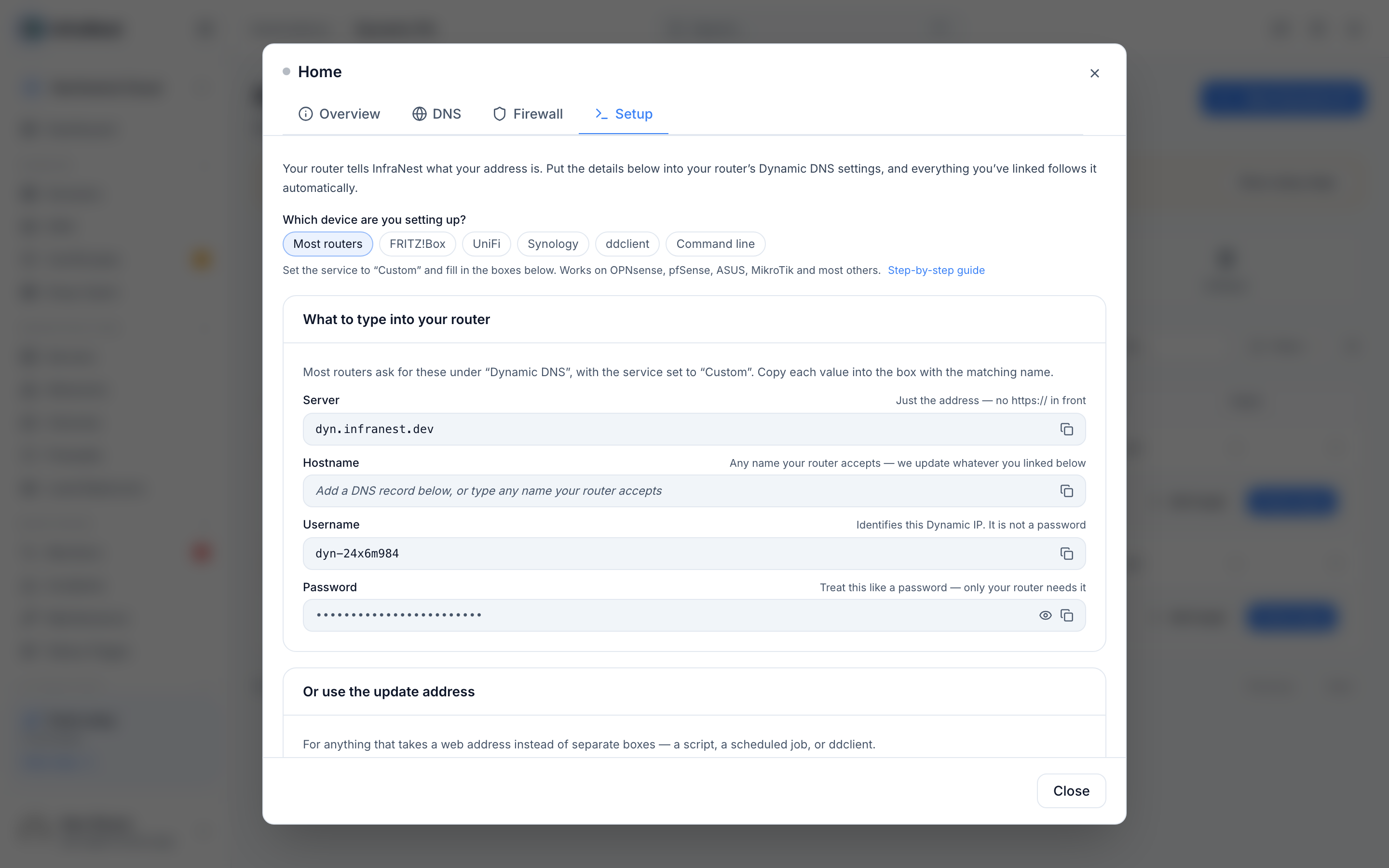
- Start on the Dynamic IP's Setup tab, under Has your router reached us? — it tells you whether anything has arrived, from where, and whether the password was right.
- Most issues below can be diagnosed from that one line.
Fix "Waiting for your router" with nothing arriving
Your router isn't reaching us at all.
- Check the Server box has no
https://in it. Routers add it themselves and end up with a broken address — this is the most common cause by a distance. - Save the settings again in your router. Many only send an update when you save or when your address changes — some have a "force update" button.
- Look for a "last result" or "status" line in your router's DDNS screen. If it mentions a name resolution or connection error, the address in the Server box is wrong.
Fix a wrong password
The Setup tab says so in those words.
- Select Show next to Password.
- Copy the password again.
- Paste it into your router, replacing what's there rather than editing it. Passwords are long and easy to truncate when copying by hand.
NoteIf you recently chose Replace the password, the old one stopped working immediately. Your router needs the new one.
Resolve "address can't be reached from the internet"
You'll see this on a linked DNS record: your router reported an address the internet can't reach, so nothing was published.
- This almost always means your connection is behind carrier-grade NAT — your provider shares one public address between many customers, and the address your router sees isn't really yours.
- Dynamic DNS can't work around this, and no setting here will fix it.
- Ask your provider for a public IP address — many offer one free or for a small fee, sometimes described as a "static IP" or "public IP" option.
TipIPv6, where offered, usually isn't affected by carrier-grade NAT.
Check why the old address still resolves
Two possibilities:
- Your DNS provider hasn't accepted the change yet. The record says so, and we retry every time your router checks in. If it persists for more than an hour, check that the integration for that provider is still connected.
- It's cached. DNS answers linger for as long as the record's TTL. Records created here use five minutes, but a record you created elsewhere may be much longer, and some networks cache beyond what they're told.
Reconnect a firewall rule that stopped following your address
You'll get an alert, and the rule shows as no longer connected. This happens when the rule itself changed — its port or protocol was edited, here or in your provider's own console — so we can no longer tell which rule to update.
- Check the entry we last allowed. It's still in your firewall, pointing at whatever address you had when it detached, and addresses get reassigned to other customers.
- Remove that entry, or re-attach the Dynamic IP to the rule as it exists now.
Understand a record stuck on 192.0.2.1
- That's a placeholder put in when you create a record before your router has ever checked in.
- It's replaced the moment the first update arrives — so this means no update has arrived yet.
- Work through the "Fix 'Waiting for your router' with nothing arriving" steps above.
Turn on alerts for IP changes
Alerts on change are off by default.
- Open the Dynamic IP's options.
- Turn on Alert me when the IP changes.
Firewall changes are always alerted regardless.
Diagnose a Dynamic IP that stopped updating after working fine
- Check the Last contact line. If it's days old, something changed at your end — a router replaced or reset, a firmware update that cleared the DDNS settings, or an ISP change.
- We send a message when a Dynamic IP goes quiet, so check whether that arrived.
- If a firewall opening was involved, it's removed after about a week of silence to stop an abandoned setup leaving a port open. You're warned before that happens, and re-connecting your router restores it.
Fix only some records updating
- Check the record types. A router that reaches us over IPv6 can only update AAAA records; one on IPv4 can only update A records.
- If you have both kinds linked and only one is moving, your router is reporting only one address.
- Most routers let you enable IPv4 and IPv6 updates separately in their DDNS settings.
Troubleshooting
- Almost every issue traces back to the Has your router reached us? line on the Setup tab — check that first.
- If your router reports an unreachable address, it's a carrier-grade NAT issue, not a settings problem — no change here will fix it.
- A rule showing as no longer connected in your firewall means it changed elsewhere and needs re-attaching, not re-creating.
Was this article helpful?