

This article is for anyone new to InfraNest, whether you're setting up your own workspace or joining a team that already uses it.
Overview
- InfraNest uses a short setup wizard to get your workspace ready when you first sign up.
- Your choices during setup tailor your dashboard layout, tips, and which areas of the app are highlighted.
- Once setup is done, your dashboard guides you through a few more steps to get fully up and running.
Set up your workspace
- Account — enter your name and sign-in details.
- Workspace — give your organisation a name.
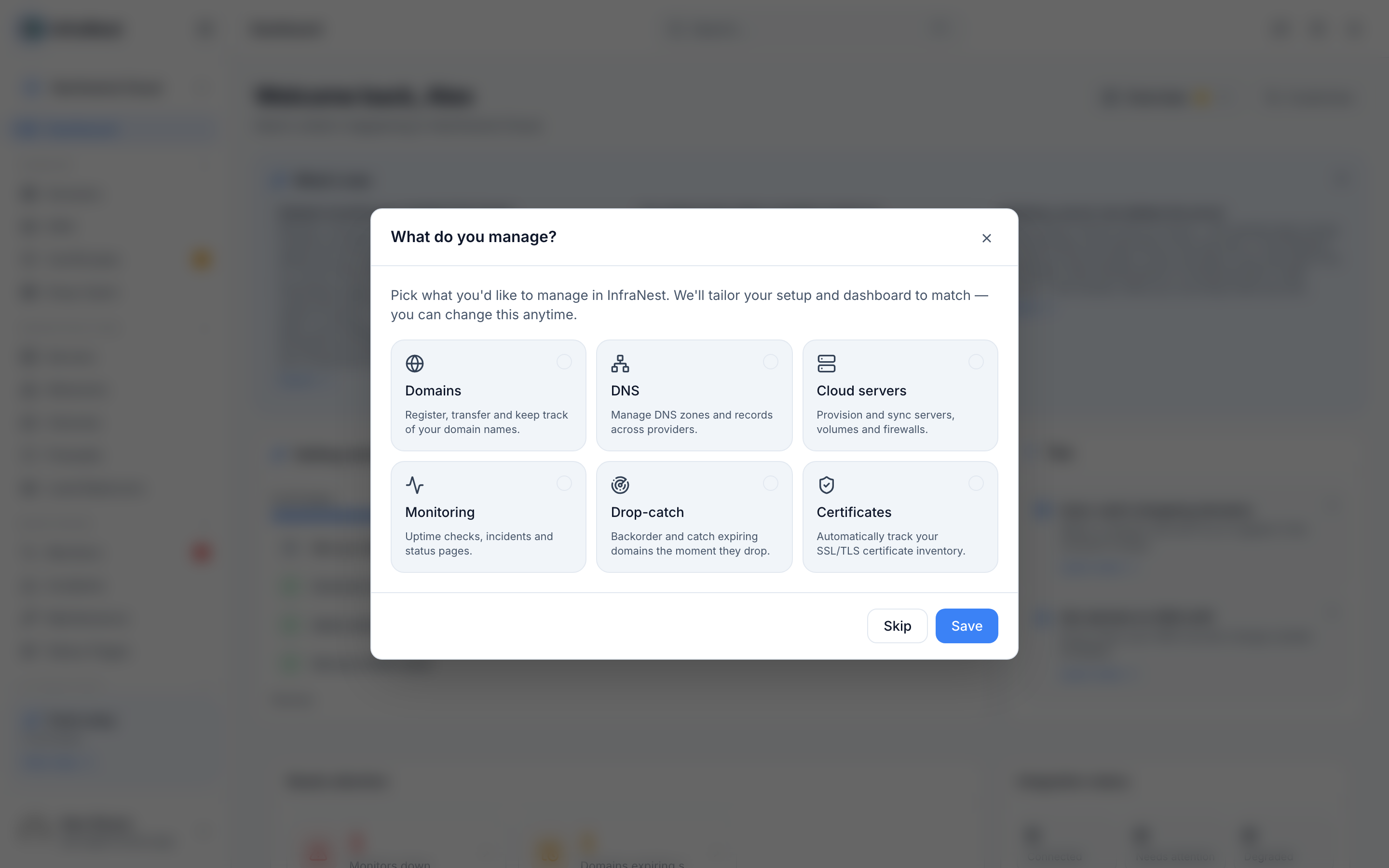
- What do you manage? — choose the areas you care about: Domains, DNS, Servers & Cloud, Monitors, Drop Catch, and Certificates. Your picks shape the rest of setup, your dashboard layout, and the tips you'll see.
- Connect your first integration — link a provider (like Hetzner or Cloudflare) so your domains, servers, and records start showing up in InfraNest.
- Done — you'll land on your dashboard, ready to go.
You can select Skip at any point and pick things up again later — nothing you've entered is lost.
NoteAreas outside your current plan still show up, marked with an Upgrade badge, so you can see what else is available.
Finish setting up from your dashboard
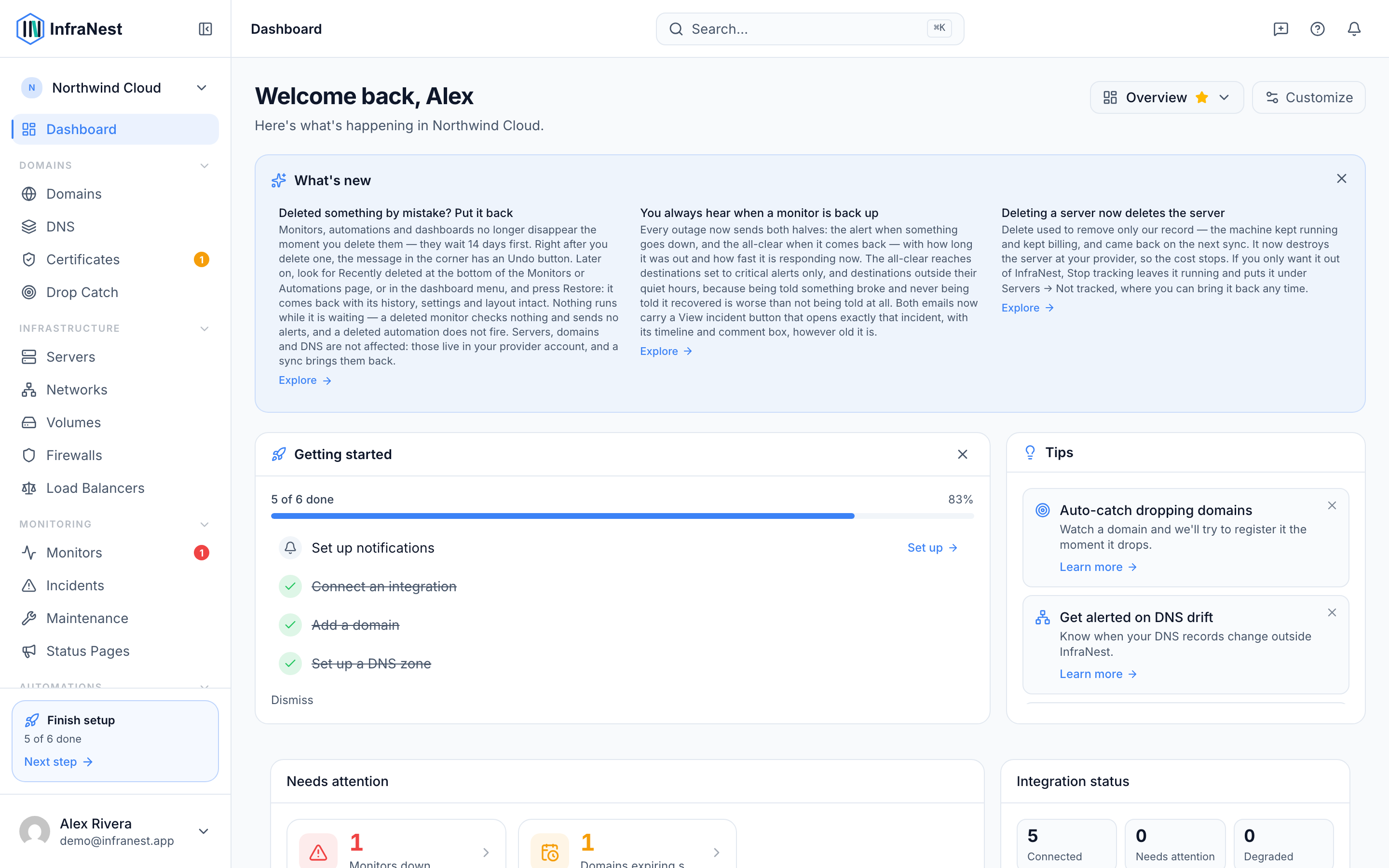
After the wizard, your Dashboard shows a short getting-started checklist to guide you through the essentials:
- Connect an integration.
- Add a domain.
- Set up a DNS zone.
- Add a monitor.
- Set up notifications.
- Watch a dropping domain.
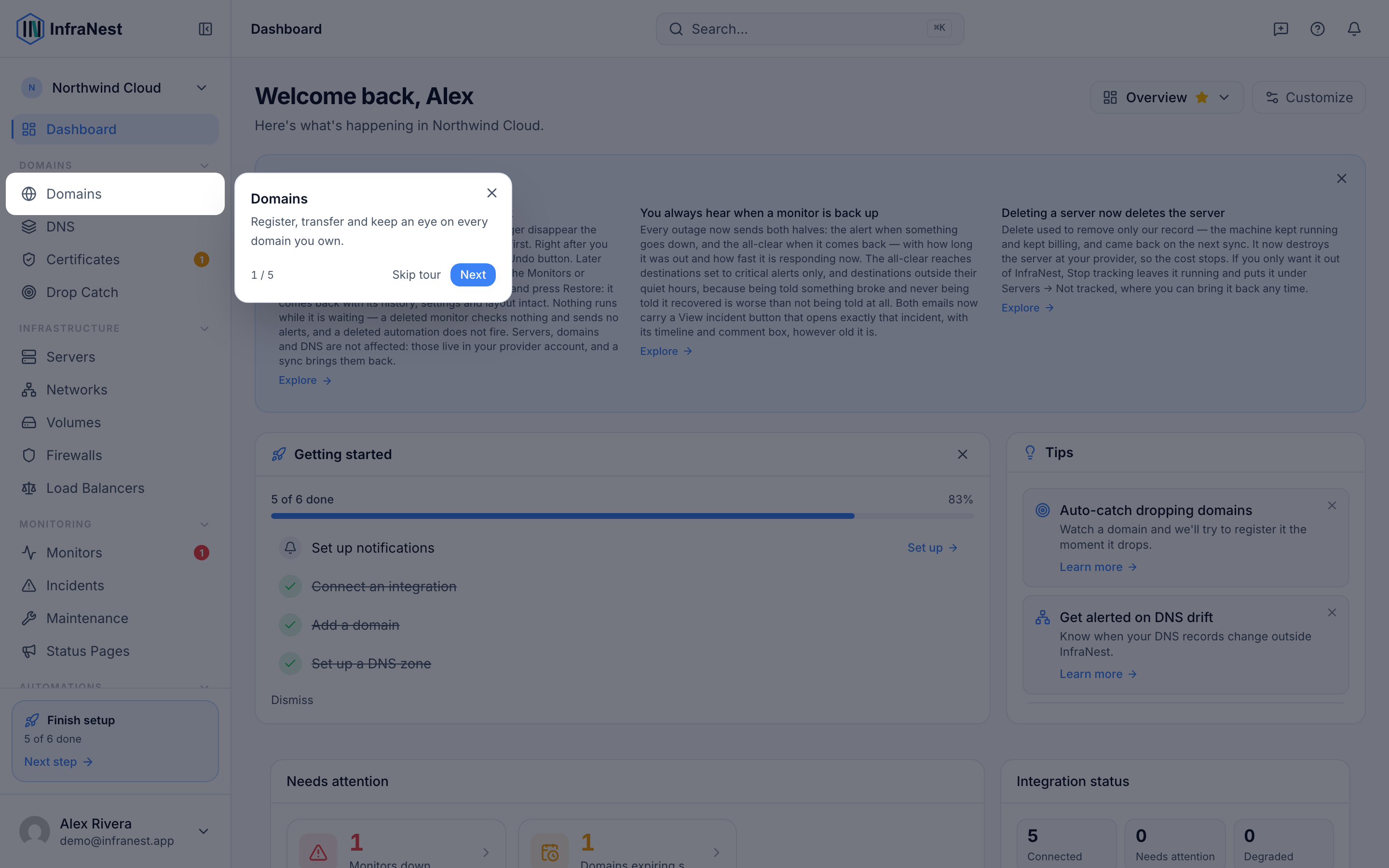
You'll also see a Tips panel and a one-time tour of the main menu. Everything here is optional and can be dismissed, and the checklist disappears once you're set up. It also remembers where you left off, so you can come back anytime.
Invited, or signing in with Google or GitHub?
If you join through an invite, or sign in with Google or GitHub, you'll skip the full setup wizard. You'll still see the What do you manage? picker once, on your first sign-in, so InfraNest can tailor your experience.
Next steps
- Connect an integration to start syncing your domains, servers, and records.
- Check your free trial details to see what's included and how long you have.
TipNot sure where to start? The getting-started checklist on your Dashboard is the fastest way to see what's left to do.
Was dit artikel nuttig?